How to Delete Created Videos in Kling AI: Generations, History, Assets, and Account (2026)
How to delete generated videos, cancel in-progress generations, clear history, remove uploaded reference images from the Element Library, and delete your Kling AI account — with what is permanent versus recoverable.

You have been generating videos on Kling AI for a few weeks. Your creations library is full of test clips, failed experiments, and duplicates.
Some are watermarked from the free tier. One uses a reference image you no longer want Kling to store. Or maybe you are done with the platform entirely and want to delete your account.
Deleting content in Kling AI is not a single action. There are four separate types of deletion — removing a single video, clearing your generation history, deleting uploaded reference images from your assets, and closing your account — and each works differently. Some are reversible. Account deletion is not.
I researched the deletion options across the Kling AI interface, community discussions, and available documentation to map exactly what you can delete, how each type works, and what the consequences are. This guide covers all four deletion scenarios and when each one is the right choice.
Here is what you can delete — and what each action actually does.
Quick Reference: What Can You Delete?
| What You Want to Delete | How | Permanent? | Time |
|---|---|---|---|
| One generated video | Delete button in creations library or My Works | Yes — cannot be restored | 10 seconds |
| In-progress generation | No official cancel button — refresh or wait | Generation stops | Immediate |
| All generation history | Delete individually — no bulk option | Yes — each deletion permanent | 1–10 minutes depending on count |
| Uploaded reference image | Remove from Element Library (Assets → Elements) | Yes | 10 seconds |
| Account and all associated data | Profile Settings → Delete Account | Yes — irreversible after confirmation | 5 minutes |
The key distinction: Deleting a video from your library removes only the output file. Your account, subscription, uploaded references, and generation history remain. Deleting your account removes everything at once.
The most common task is removing a single video you no longer want.
Deleting Individual Generated Videos
This is the most common deletion task — you generated a video and want to remove it from your library.
From the Creations Library
- Go to My Works or Creations from the main navigation.
- Find the video you want to delete. The library displays your recent generations in reverse chronological order.
- Click or hover over the video thumbnail to reveal the action menu (usually three dots or a gear icon in the top-right corner of the thumbnail).
- Select Delete from the menu.
- Confirm the deletion when prompted.
The video is removed from your library immediately. Downloaded copies on your local device are not affected.
From the Generation Result Page
If you just finished generating and are on the result page:
- Locate the delete option near the video preview or in the action toolbar.
- On desktop, this is usually an icon in the same row as the download and share buttons.
- Click Delete and confirm.
What Happens After Deletion
- The video is removed from your creations library permanently.
- Any share links that pointed to this video will stop working.
- Downloaded copies on your device or shared with others are not affected.
- The generation still counted against your credit usage — deletion does not refund credits.
Rule of thumb for individual deletion: Delete failed or unwanted generations immediately after reviewing them. If you let them accumulate, the library becomes difficult to navigate, and there is no bulk delete option as of mid-2026.
Deleting a completed video is straightforward. Canceling one that is still generating is a different problem entirely.
Canceling In-Progress Generations
You started a generation and immediately realized the prompt was wrong, or the reference image was incorrect. You want to cancel it before it finishes.
Current limitation: Kling AI does not provide a cancel button for in-progress generations. Once a generation starts, it runs to completion. This is a common community complaint (Reddit threads frequently ask "How do I cancel a generating video?" with no solution other than waiting).
Your options:
- Let it finish. The generation will complete in 30 seconds to 3 minutes depending on complexity and server load. Once complete, you can delete the result using the steps above. The credit is consumed either way.
- Refresh the page and start over. Refreshing the browser tab stops the generation on your end, but the server-side process may continue. The video may still appear in your creations library after the refresh. If it does, delete it individually.
- Close the tab and check later. If you close the tab entirely, the generation may still complete on Kling AI's servers. Check your creations library after a few minutes and delete if needed.
Why there is no cancel button: Kling AI processes generations server-side. Once submitted to the GPU queue, the job cannot be recalled. This is standard behavior for cloud-based AI generation platforms and is not a missing feature that can be fixed client-side.
Expert pitfall for in-progress generations: Do not submit a new generation with corrected parameters while another is running — this queues a second job and consumes additional credits. Wait for the first generation to finish, delete it if unwanted, then submit the corrected version.
If you have many completed videos to remove, the lack of a bulk option means you need a different approach.
Clearing Generation History
Kling AI does not offer a "Clear All" or bulk delete option for generation history as of mid-2026. Each video must be deleted individually from the creations library.
If you need to clear many videos:
- Set aside 5–15 minutes depending on how many videos you have.
- Open My Works → Videos.
- Delete videos one at a time using the thumbnail menu.
- Work from oldest to newest or newest to oldest — whichever is faster for your workflow.
If you are trying to free storage space: Generated videos stored on Kling AI's servers count against your account storage quota on some plans. Deleting old generations frees this space.
If you are trying to hide content from your account: Deleting individual videos is sufficient. There is no "recent activity" feed visible to other users on Kling AI.
Your generation history is one type of stored content. The reference images you uploaded for generation are a separate category that requires a different deletion path.
Deleting Uploaded Reference Images and Assets
When you upload a reference image for I2V generation or a character element for consistent character workflows, that image is stored in your Kling AI Element Library. You may want to remove it if you no longer need it or if it contains sensitive content.
Removing from the Element Library
- Go to Assets → Elements from the main navigation.
- Browse or search for the reference image you want to remove.
- Click on the element to open its details.
- Look for a Delete or Remove option — usually an icon in the element detail view.
- Confirm deletion.
What Happens After Deletion
- The reference image is removed from your Element Library.
- Any existing generations that used this reference are not affected — they were already rendered and the image data is embedded in the output video.
- You cannot use the reference again for new generations unless you re-upload it.
- If you deleted a reference image by mistake and have not cleared your browser cache, you may be able to re-download the original image from the generation details page (if the generation still exists).
The Element Library as an Organization Tool
The Element Library is designed for asset management, not just deletion. You can:
- Group related reference images into named collections.
- Tag elements for easier searching.
- View which elements are actively used in recent generations.
- Archive unused elements without deleting them (if available in your plan).
Rule of thumb for reference images: Before uploading a reference image, assume it will remain in your Element Library until you manually delete it. If the image is sensitive, delete it immediately after generating.
Deleting individual videos, canceling generations, and removing references are all targeted actions. If you want to remove everything at once, you need to delete your account.
Deleting Your Kling AI Account
If you want to remove your account and all associated data, Kling AI provides an account deletion option in your profile settings.
Prerequisites
Before you delete your account:
- Cancel any active subscriptions. An active subscription can prevent account deletion. Cancel your plan from the subscription management page first.
- Download any videos you want to keep. Account deletion is permanent and irreversible. Download your generations to local storage before proceeding.
- Save reference images you may need later. The Element Library is deleted with your account.
Steps to Delete
- Go to your Profile Page (click your avatar or username in the top-right corner).
- Click Profile Settings (usually in the top-right of the profile page).
- Scroll to the bottom of the settings page and find Delete Account.
- Click Delete Account. The system will ask you to confirm.
- Enter the verification code sent to your registered email address.
- Confirm the deletion one final time.
What Happens After You Delete
- Your account is scheduled for permanent deletion.
- All generated videos, reference images, elements, and history are removed from Kling AI's servers.
- Any active subscriptions are canceled (if not already canceled).
- Your account email becomes available for a new registration.
- Share links to your deleted videos stop working.
Data Retention
Kling AI's privacy policy states that deleted account data may be retained for a period after deletion for legal and compliance reasons (typically 30–90 days). During this retention window:
- Your data cannot be accessed through the platform.
- The data is not visible to other users.
- You cannot reverse the deletion or recover your account.
- After the retention period, data is permanently erased from backups and logs.
Expert pitfall for account deletion: Account deletion cannot be reversed. There is no "undo" or "reactivate" option. If you are unsure whether you want to permanently leave Kling AI, consider canceling your subscription first and leaving the account dormant. You can always delete it later. A dormant account with no subscription keeps your data intact without charging you.
These four deletion types raise common questions about edge cases and unexpected behavior.
Frequently Asked Questions
Does deleting a video refund my credits? No. Credits are consumed when the generation is submitted, not when the video is downloaded or retained. Deleting the output does not reverse the credit usage.
Can I hide videos from my library without deleting them? Kling AI does not offer a "hide" or "archive" feature for generated videos as of mid-2026. Your options are to delete the video or leave it visible in your library.
Will deleting a reference image affect old videos I already generated? No. The reference image is used only during generation. The output video contains the rendered result, not a link to the original reference. Deleting the reference has no effect on existing videos.
How long does account deletion take? The account deletion process begins immediately after you confirm with the verification code. However, data may remain in backups for 30–90 days per Kling AI's privacy policy. Your account becomes inaccessible immediately.
Can I recover a deleted video? No. Deleted videos are removed from Kling AI's servers immediately and cannot be recovered. If you downloaded the video to your local device before deleting it, you still have that copy.
Can I delete my account if I have an active subscription? You should cancel your subscription first. Some users report that active subscriptions block the delete account option. Cancel the subscription, wait for it to process, then delete the account.
Does Kling AI offer a bulk delete option? No. As of mid-2026, there is no "Select All" or "Delete All" option in the creations library. Each video must be deleted individually.
The answers above share a common thread. Here is the short version of everything in this guide.
Summary
Deleting content in Kling AI involves four separate actions, each with different consequences:
- Individual videos: Delete from My Works. Permanent but does not affect your account or assets.
- In-progress generations: No cancel button available. Let it finish, then delete the result.
- Reference images: Remove from Element Library (Assets → Elements). Affects future generations only.
- Account: Delete from Profile Settings. Irreversible — removes everything after confirmation and a retention period.
The most common mistake is assuming "delete video" also removes your uploaded reference image, or that deleting the reference image affects existing generations. Neither is true — the four deletion types are independent.
Next step: If you are deleting your account because you are done with Kling AI, make sure you have downloaded everything you want to keep first. For help with the subscription cancellation that must happen before account deletion, see the Kling AI Credits & Subscription Guide. If you are cleaning up your library to stay organized, the How to Use Kling AI for Free guide covers best practices for managing free tier limits.
Author

Categories
More Posts
What Is Native Audio in Kling AI? Complete Guide to Kling 2.6, 3.0 & 3.0 Omni Audio
A complete guide to native audio in Kling AI: what synchronized audio-video generation actually means, how Kling 2.6 audio compares to Kling 3.0 and 3.0 Omni, supported languages and accents, and when you still need external tools like ElevenLabs or post-production software.
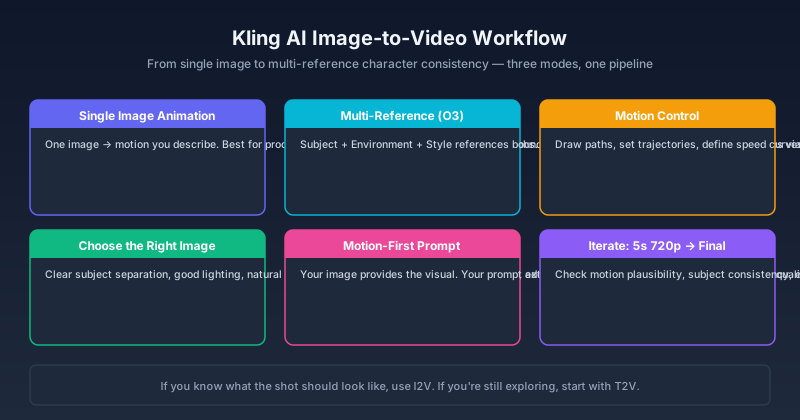
Kling AI Image to Video: Complete Workflow Guide for 2026
Master Kling AI image-to-video generation — from single-image animation and multi-reference workflows to motion control, character consistency, and output optimization. Step-by-step guide with real examples.
Kling 3.0 Omni: Complete Guide to Native Audio, Multi-Shot, and Omni Edit
A complete guide to Kling 3.0 Omni: what makes it different from standard Kling 3.0, native audio quality, multi-shot storyboarding, Omni Edit, credit costs, and when to use which version.
Newsletter
Join the community
Subscribe to our newsletter for the latest news and updates