How to Use Kling AI in 2026: First Video Workflow from Sign-In to Download
A step-by-step guide to using Kling AI for the first time — how to sign in, choose between T2V and I2V, write prompts, set duration and aspect ratio, submit generations, preview results, download your first video, and fix weak output.
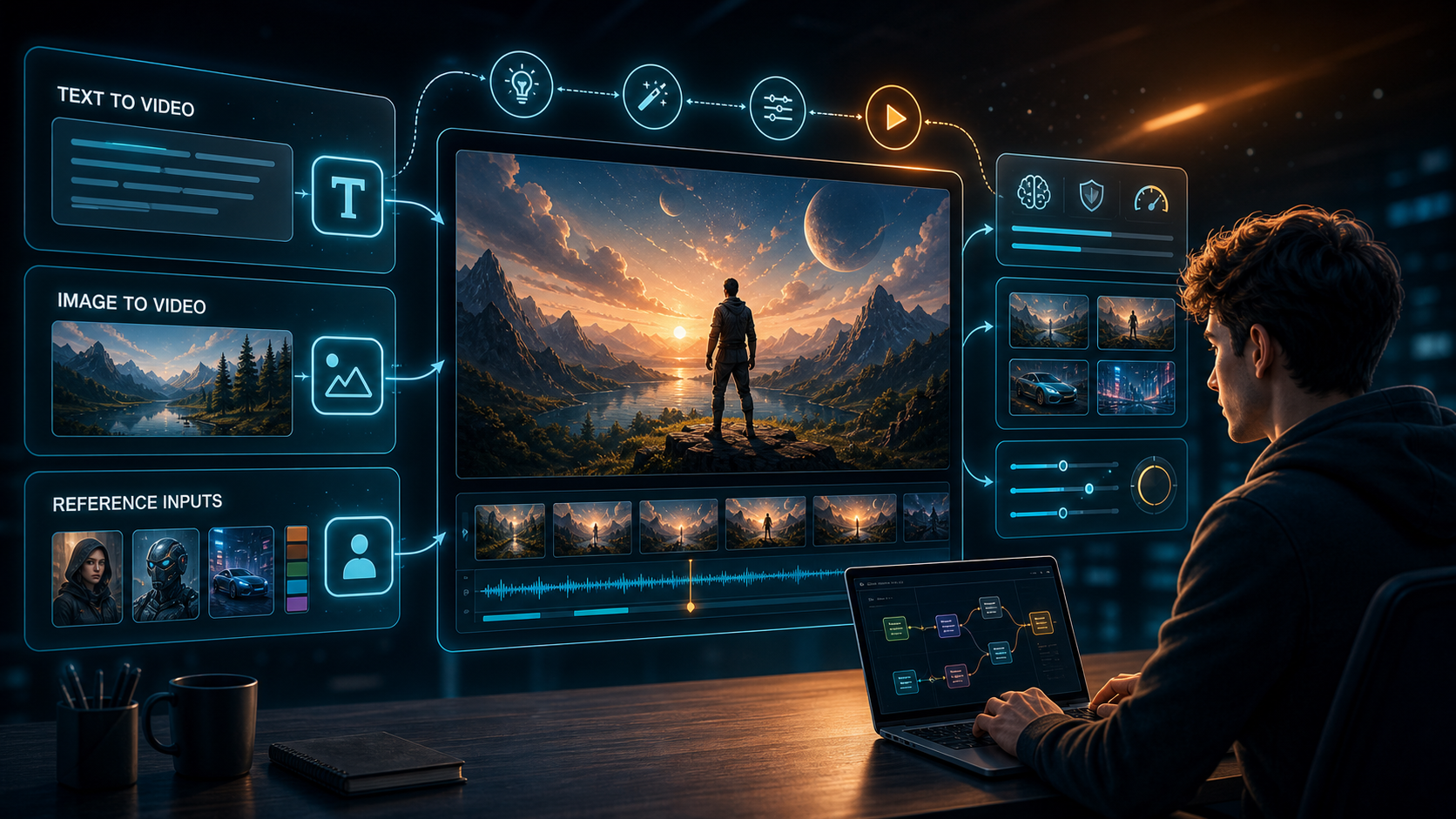
You signed up for Kling AI. You have seen the impressive demo clips online — cinematic tracking shots, fluid character motion, realistic physics.
But when you open the interface for the first time, there are multiple mode tabs, unfamiliar settings, and no obvious "make a video" button.
Every first-time user goes through the same confusion. The settings that matter most (aspect ratio, duration, mode selection) are not explained on the page.
This guide walks through the complete first-workflow process — from signing in to downloading your first video — with exactly what to set at each step. It covers both Text-to-Video and Image-to-Video, explains the settings that actually change output quality, and tells you what to do when the first result is weaker than expected.
Start with an overview of the available modes.
Quick Overview: What Kling AI Can Do
Before you start, here is what the different modes are for:
| Mode | Input | Output | Best For |
|---|---|---|---|
| Text-to-Video (T2V) | Text prompt only | Video generated from your description | Creative exploration, cinematic scenes |
| Image-to-Video (I2V) | Text prompt + starting image | Video that continues from the image | Character consistency, product shots, specific subjects |
| Motion Brush | Text prompt + motion path drawn on image | Video with controlled motion path | Precise object movement, directional motion |
| O1 / Omni | Multimodal input (text + image + reference) | Video with multi-reference consistency | Advanced consistency workflows |
For your first video, start with Text-to-Video. It is the simplest mode and the fastest way to understand how Kling AI interprets prompts.
Once you know which mode to use, the next step is getting to the generation interface.
Step 1: Sign In and Reach the Generator
- Go to the Kling AI website (
kling.aior your regional access portal). - Click Sign In in the top-right corner. You can register with an email address or use a Google account.
- After signing in, you land on the main dashboard. Look for the Video Generation section — usually a tab labeled "AI Videos," "Video," or a large "Create" button.
- Click into the video generation interface. The page shows a prompt input field, mode tabs, and settings panels.
If you see a "Get Started" tutorial overlay, click through it — it highlights the main controls.
With the generator open, the next decision is which mode to use for your first video.
Step 2: Choose Your First Mode — Text-to-Video
At the top of the generation page, you see mode tabs: usually Text-to-Video, Image-to-Video, Motion Brush, and possibly O1 or Omni. For your first generation:
- Select Text-to-Video (or "T2V").
- Leave the image input empty — you are generating from text only.
Text-to-Video is the best mode for a first test because it removes variables. Every parameter you add (reference image, motion brush, end frame) changes the output in ways that are hard to diagnose if you are new to the platform. Starting with text only gives you a clean baseline.
With T2V selected, the most important input is your prompt. Here is how to write one that produces usable results on the first try.
Step 3: Write Your First Prompt
The prompt is the most important input. Kling AI interprets text prompts similarly to other AI video generators — it needs a clear subject, an action, a setting, and a mood.
A good first prompt structure:
[Subject] [action] in [setting]. [Camera movement]. [Lighting or mood].
Example: "A woman walks slowly through a rainy city street at night. Cinematic tracking shot. Neon reflections on wet pavement. Warm amber street lights."
Prompt length: 20–50 words is the sweet spot. Short prompts (under 10 words) produce generic output. Prompts over 80 words can cause the model to lose focus on the main subject.
What to avoid in your first prompt:
- Fast or complex action (running, jumping, fighting) — Kling AI handles slow, continuous motion best
- Multiple subjects — stick to one character or object for your first test
- Abstract concepts — be concrete about what the viewer should see
Rule of thumb for first prompts: Describe what the camera sees, not what the subject feels. "A sad woman" is less effective than "A woman with tears streaming down her face, standing still in a doorway."
The prompt sets the content. The settings below it control the format and cost.
Step 4: Set Duration, Aspect Ratio, and Quality
Below the prompt input, you find the settings panel. These three settings have the largest impact on output quality and credit cost.
Duration
Kling AI supports video durations from 5 to 10 seconds in standard mode, with longer options available in professional or extended modes.
| Duration | Best For | Credit Cost |
|---|---|---|
| 5 seconds | Testing prompts, quick iterations | Lowest |
| 5–8 seconds | Social media clips, standard use | Medium |
| 10 seconds | Cinematic shots, complex scenes | Highest |
For your first video: Set 5 seconds. Shorter durations are faster to generate and cheaper on credits. You can increase duration once you confirm the prompt works.
Aspect Ratio
Kling AI supports eight standard aspect ratios. The choice depends on where you plan to use the video:
| Aspect Ratio | Format | Best For |
|---|---|---|
| 16:9 (landscape) | 1920×1080 or 1280×720 | YouTube, general use, cinematic |
| 9:16 (portrait) | 720×1280 | TikTok, Reels, Shorts, mobile |
| 1:1 (square) | 1080×1080 | Instagram, social media |
| 4:3 | Standard video | Presentations, classic format |
| 2.35:1 | Cinematic widescreen | Film-like aesthetic |
For your first video: Use 16:9 (1280×720). It is the most forgiving aspect ratio and matches most display formats.
Quality / Resolution
Kling AI offers multiple resolution options. Higher resolutions produce more detail but cost more credits and take longer to generate.
| Quality Level | Resolution | Use Case |
|---|---|---|
| Standard (480p) | 854×480 | Testing, drafts, quick previews |
| Balanced (720p) | 1280×720 | Default — best quality-to-cost ratio |
| High (1080p) | 1920×1080 | Final output, professional use |
For your first video: Use 720p (Balanced). It gives you a clear picture without spending maximum credits. Move to 1080p only after you confirm the prompt and composition work.
With the prompt written and settings configured, you are ready to submit the job.
Step 5: Submit and Monitor
- Click the Generate button (usually labeled "Generate" or "Create").
- The generation enters a queue. Estimated wait time is shown on the page — typically 30 seconds to 5 minutes depending on server load and your plan tier.
- Keep the browser tab active. Kling AI requires the tab to stay open during generation (see the troubleshooting guide if your generation stops when you switch tabs).
- The progress bar shows generation status. When it reaches 100%, the video preview appears automatically.
If the generation takes longer than expected: This is usually queue wait time, not a problem. During peak hours, generations from free accounts may wait 15 minutes or more. The progress bar moves when the GPU resources become available.
The generation completed. Now you need to see the result and get the file.
Step 6: Preview and Download
The video preview appears on the generation result page once processing is complete.
- Preview the video. Click the play button to watch your generated clip. Check if the motion is smooth, the subject matches your prompt, and the quality meets your needs.
- If the result is usable, click the Download button (usually a downward arrow icon below the video). The file downloads as an MP4.
- If the download button does not respond, right-click on the video preview and select "Save video as." This workaround bypasses most download issues.
- If you want to try again with different settings, adjust your prompt or parameters and click Generate again. The new generation creates a separate video — it does not overwrite the previous one.
Your generated videos are saved in your My Works → Videos library. You can return to them later, download them again, or delete them.
If the video looks weaker than you expected, do not worry — this is the most common experience for first-time users. Here is what to check.
What If the First Output Is Weak?
Most first-time users get a weak first result. This is normal — Kling AI requires prompt tuning to produce good output. Here is what to check:
The subject does not match the prompt.
- Your prompt may be too short or vague. Add specific visual details: clothing, lighting, environment, camera angle.
- Try copying a prompt from the prompt guide article and see if the output improves. If it does, the issue was your prompt structure, not the model.
The motion is jittery or unnatural.
- Use "slow" and "continuous" in your prompt. Kling AI handles deliberate, steady motion better than quick or erratic action.
- Reduce the duration to 5 seconds. Longer durations have more opportunity for motion artifacts.
The video is blurry or low quality.
- Check that you selected 720p or 1080p, not 480p.
- Ensure your reference image (if using I2V) is sharp and high-resolution. Blurry input = blurry output.
The colors look flat or washed out.
- Add lighting cues to your prompt: "dramatic lighting," "golden hour," "neon glow," "soft diffused light."
- Kling AI treats the prompt as the source of all visual direction. If you do not describe lighting, the model defaults to flat, even lighting.
Expert pitfall for first-time prompts: The most common mistake is writing a prompt that describes what a video should BE about, not what it should LOOK like. "A futuristic city" produces generic architecture shots. "A drone shot slowly descending over a neon-lit futuristic city at night, with flying vehicles crossing between skyscrapers, purple and blue lighting" produces a specific, usable clip. Be visual, not conceptual.
Frequently Asked Questions
Do I need to pay to use Kling AI? Kling AI offers a free tier with limited daily credits. You can generate a few videos per day without paying. For regular use, a subscription (Basic, Pro, or Unlimited) provides more credits and higher priority in the generation queue. See the Kling AI Credits & Subscription Guide for current pricing.
What is the best mode for a beginner? Text-to-Video with a 5-second duration at 720p. This removes variables and gives you the fastest feedback on whether your prompt works.
How long does a generation take? Typically 30 seconds to 5 minutes for standard prompts at 720p. Free tier users may experience longer wait times during peak hours.
Can I use my own images as references? Yes — that is Image-to-Video mode. Upload a starting image and Kling AI generates a video that starts from that image and follows your prompt. For detailed I2V instructions, see the Kling AI Image to Video Guide.
Why does my video have a watermark? Free tier downloads include a visible watermark. Paid plans (Basic and above) produce watermark-free videos.
Can I edit a generated video? Kling AI does not offer built-in video editing. You can download the MP4 and edit it in any video editor. For changes to the generation itself (different motion, different subject), you need to regenerate with a modified prompt.
These steps cover the complete first-video workflow. Here is the checklist version.
Summary
Your first Kling AI video takes six steps:
- Sign in and navigate to the video generator
- Select Text-to-Video mode for your first test
- Write a visual prompt — subject, action, setting, lighting
- Set 5 seconds, 16:9, 720p — the standard starter configuration
- Generate and wait — keep the tab active
- Preview and download — use right-click if the button does not work
If the first output is weak, do not change the settings — change the prompt. Most first-time quality issues are prompt problems, not model problems. Make your prompt more visual and specific.
Next step: Once you have a working prompt, try Image-to-Video with a reference image to get more control over the subject. The Kling AI Image to Video Guide covers the full I2V workflow. For tips on improving prompt quality, the Kling 3.0 Prompt Guide has detailed examples and techniques.
Author

Categories
More Posts
Kling 3.0 Omni: Complete Guide to Native Audio, Multi-Shot, and Omni Edit
A complete guide to Kling 3.0 Omni: what makes it different from standard Kling 3.0, native audio quality, multi-shot storyboarding, Omni Edit, credit costs, and when to use which version.
Kling AI API Guide: Pricing, Setup, and Integration (2026)
Everything you need to integrate Kling AI's API: how to get an API key, pricing per model, code examples for video generation, and a comparison of official vs third-party providers.
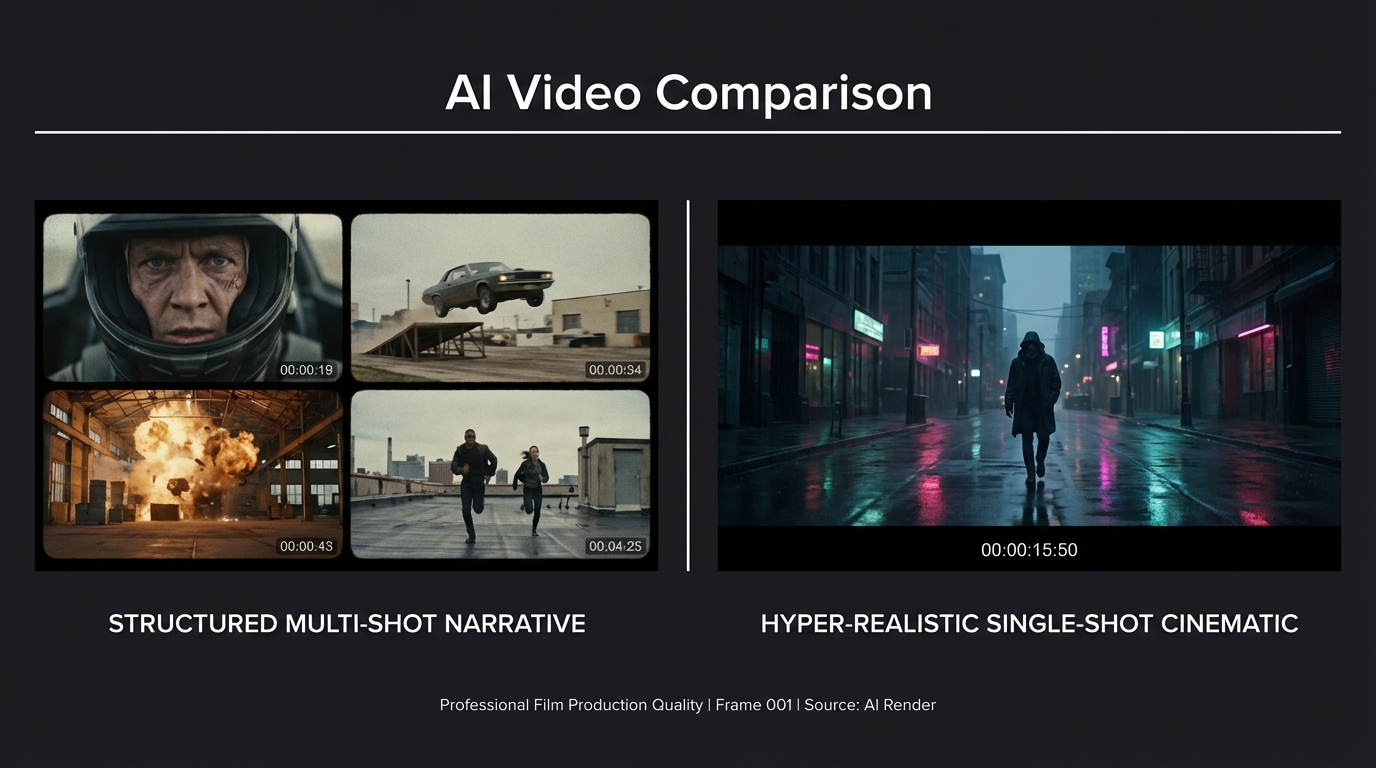
Kling 3.0 vs Seedance 2.0: Which AI Video Model Wins in 2026?
A direct comparison of Kling 3.0 and Seedance 2.0 across video quality, multi-shot control, character consistency, audio, pricing, and use cases — with real community test results.
Newsletter
Join the community
Subscribe to our newsletter for the latest news and updates