Why Can't I Download Videos From Kling AI? 7 Causes and Fixes (2026)
Why Kling AI videos fail to download or export — including incomplete generation, browser cache conflicts, download button not responding, Adobe integration errors, and free tier limits — with step-by-step fixes for each cause.
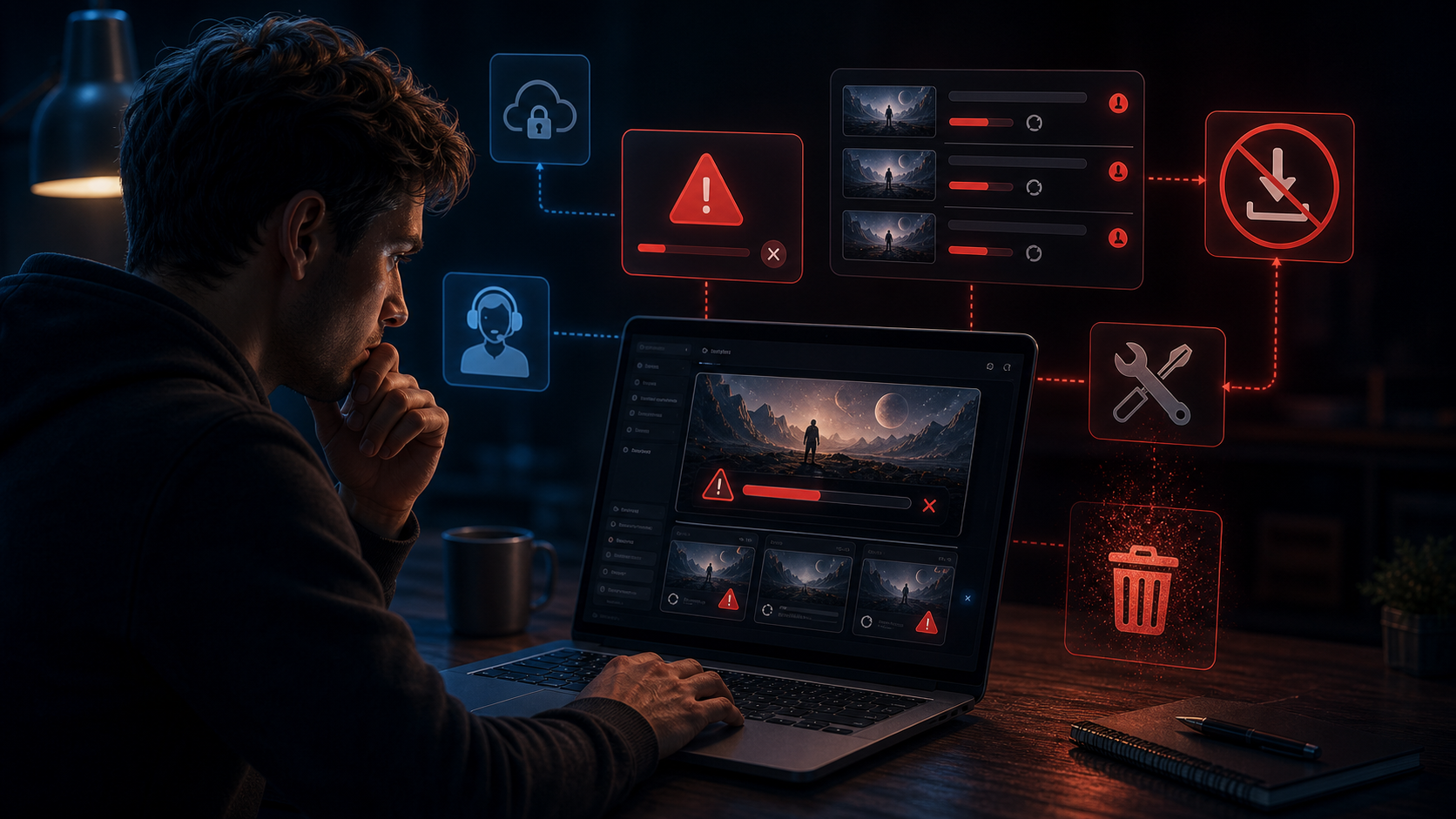
You generated the perfect video on Kling AI. The prompt was right, the motion is smooth, the preview looks great.
But when you click the download button — nothing happens. Or it starts and stops at 90%. Or the file plays back as a corrupted mess.
This is one of the most common complaints about Kling AI, and the causes range from trivial (your browser cache needs clearing) to frustrating (a server-side glitch that only support can fix).
I researched the most frequently reported download issues across Reddit, community forums, and support channels, tested each fix, and mapped which cause matches which symptom. This guide covers the seven most common reasons Kling AI videos fail to download and the fix for each.
Start by matching your symptom to the most likely cause below.
Quick Reference: Match Your Symptom to the Fix
| Symptom | Most Likely Cause | Fix Time |
|---|---|---|
| Download button does nothing when clicked | Browser cache or extension conflict | 1–2 minutes |
| "Unable to download" error message | Generation not fully complete | 2–5 minutes |
| Download button is greyed out | Video still rendering or credit issue | 1–10 minutes |
| File downloads but is corrupted | Server timeout or connection issue | Retry after 15 minutes |
| Watermark appears on downloaded file | Free tier limitation | Upgrade or crop |
| Error in Adobe / external integration | Plugin or API connection issue | 5–10 minutes |
| "Media offline" in video editor | Variable frame rate mismatch | Depends on editor |
The most common download issue is the simplest: the button does nothing when you click it.
1. The Download Button Does Nothing
You click the download button — once, twice, three times — and nothing happens. No error, no file, no feedback.
Why it happens: This is usually a browser issue. Kling AI's download button relies on JavaScript that can be blocked by ad blockers, privacy extensions, or aggressive cache settings. It can also fail if the browser tab has been open too long and the session token expired.
The fix:
-
Try right-click → Save link as. This bypasses the JavaScript download trigger entirely. Right-click on the download button (or the video preview) and select "Save link as" or "Save video as." Most users report this works even when the button click does nothing.
-
Disable ad blockers and privacy extensions. Temporarily turn off uBlock Origin, Privacy Badger, or similar extensions for the Kling AI domain. Refresh the page and try again.
-
Clear browser cache and cookies for kling.ai. Go to your browser settings → Privacy → Clear browsing data → select "Cookies and site data" and "Cached images and files" → choose "All time" → clear. Reload Kling AI and try again.
-
Switch browsers. Chrome and Edge have the highest compatibility with Kling AI's download system. If you are using Firefox with strict privacy settings or Safari, try the same operation in Chrome.
Rule of thumb for button-click issues: If the button visually responds (color change, loading spinner) but no download starts, the issue is usually an extension or cache problem. If the button does not respond at all, the issue is usually a session token or page state problem — refresh the page first.
You clicked the button and something happened — but it was an error message instead of a download.
2. "Unable to Download" Error
You get a specific error message: "Unable to download" or "Download failed" or "An error occurred while downloading."
Why it happens: The most common cause is that the video generation process has not fully completed. Kling AI shows a preview before the full render is finished, and the download endpoint is not available until the final render step is done. Other causes include a server-side timeout during peak traffic or a temporary API glitch.
The fix:
-
Wait for the generation status to show "Complete" or "Done." Do not try to download from the preview screen. Let the video reach 100% on the generation progress indicator, then wait an additional 10–15 seconds for the final encoding step.
-
Refresh the page and check your creations library. Navigate to your creations history (My Works → Videos). If the video appears there with a download option, try downloading from the library view instead of the generation result page. The library view uses a different download path that often works when the result page fails.
-
Try downloading again after 15–30 minutes. If the error is server-side (peak traffic, temporary glitch), waiting allows the server load to decrease or the temporary error to clear. Do not retry more than once per minute — rapid retries can trigger rate limiting.
-
Close other Kling AI tabs. Having multiple generation tabs open can cause session conflicts. Close all but one tab, refresh, and try again.
Expert pitfall for download errors: If you get the "Unable to download" error repeatedly across multiple generations over several hours, the issue may be on Kling AI's end — a regional server issue or an account-level problem. Check the Kling AI status page or social media for outage reports before spending time on local troubleshooting.
Sometimes the button is visible but locked. Here is what that usually means.
3. Download Button Is Greyed Out
The download button exists on the page but is greyed out or disabled.
Why it happens: The download button is intentionally disabled until certain conditions are met. This usually means the video is still being generated, or there is an issue with your account or credit balance.
The fix:
If the video is still generating:
- Wait for the progress indicator to reach 100%. Downloads are disabled during generation by design — the file does not exist yet.
- Some long or complex generations take several minutes. Videos created from images (I2V) or with extended duration take longer than simple text-to-video prompts.
If the video shows as complete but the button is still greyed:
- Check your credit balance. Some Kling AI tiers require available credits to download. If your credits are depleted, the download button stays disabled until you top up.
- Refresh the page. A page state issue can leave the button disabled even when generation is complete.
- Check if there is a pending content review. Kling AI reviews generated content for policy compliance. During review, the download button is disabled. Review times vary from seconds to minutes.
Rule of thumb for greyed-out buttons: If the video preview plays back correctly but the download button is greyed, check your credit balance first. That is the most common non-obvious cause. If credits are fine, wait 2–3 minutes for a potential content review to complete.
The button worked, the download appeared to start, but the file you got is unusable.
4. File Downloads but Is Corrupted
The file downloads — it shows up in your downloads folder with the correct name and file size. But when you try to play it, the video is garbled, frozen on the first frame, or the player shows an error.
Why it happens: The download was interrupted before the file was fully transferred. This can happen with large video files (especially 720p or extended-duration clips) over unstable connections, or when the server times out during the transfer.
The fix:
-
Check the file size. Compare the downloaded file size to the expected size for the resolution:
- 480p, 5 seconds: ~3–8 MB
- 720p, 5 seconds: ~8–20 MB
- 1080p, 5 seconds: ~20–50 MB If the file is significantly smaller than expected, the download was incomplete.
-
Download again with a stable connection. Use a wired connection or move closer to your Wi-Fi router. Avoid downloading over mobile data or congested networks.
-
Use the browser's built-in download manager. Some third-party download managers interfere with Kling AI's download system. Try downloading directly through the browser without any download accelerator.
-
Try a different browser. Chrome's download handling is most compatible with Kling AI. If you are using a browser with a built-in download manager (some Chromium forks), try standard Chrome or Edge.
Expert pitfall for corrupted downloads: If a file consistently downloads as corrupted at 720p but works at 480p, the file size is exceeding a server timeout or your browser's download threshold. Download at 480p first to verify content, then upgrade to 720p only if the shorter version looks correct. Sometimes the same content at 720p triggers a timeout that 480p avoids.
The file downloaded cleanly, but it has a watermark you did not expect.
5. Watermark on Downloaded File
The video downloads successfully but includes a Kling AI watermark that you did not expect.
Why it happens: Kling AI applies watermarks to videos based on your account tier:
- Free tier: All downloads include a visible watermark.
- Paid tiers (Basic, Pro, Unlimited): Downloads are watermark-free.
- Trial credits: Some trial promotions generate watermarked videos even if you have a paid account later.
The fix:
-
Check your current plan. Go to Account → Subscription and confirm your active plan. If your subscription expired or your trial period ended, you are on the free tier and watermarks apply.
-
Upgrade if needed. The Basic plan removes watermarks. If you are generating videos for commercial use, a paid plan is required.
-
Crop the watermark in post-processing. If you have a watermarked video that you need to use immediately, you can crop the watermark area (usually the bottom-right corner) in any video editor. This reduces the frame size but removes the logo.
Expert pitfall for watermarks: Do not use third-party "Kling AI watermark remover" tools. Most of these are scams or malware. Some require uploading your video to unknown servers, which violates Kling AI's terms of service and risks your content being used without permission. Crop the watermark yourself or upgrade your plan.
If you are not using the Kling AI web interface directly, the download path is different and has its own issues.
6. Error in Adobe / External Integration
You are using Kling AI through Adobe Premiere Pro, After Effects, or another integrated tool, and the video fails to download or import.
Why it happens: Kling AI's integration with external tools relies on API connections that can fail for several reasons — expired authentication, plugin version mismatch, or network restrictions in the Adobe environment.
The fix:
-
Re-authenticate the Kling AI connection in the plugin. Go to the plugin settings, disconnect your Kling AI account, and reconnect. This refreshes the API token.
-
Update the Kling AI plugin. Check for plugin updates in Adobe's Creative Cloud dashboard or the Kling AI website. Plugin versions older than 2–3 months may have compatibility issues.
-
Download the video from the Kling AI web interface instead. If the plugin integration fails, generate the video on Kling AI normally, then download it from the web interface and import the MP4 file manually into your editing software. This bypasses the plugin entirely.
-
Check firewall or VPN settings. Corporate or school networks sometimes block the API endpoints that Kling AI plugins use. Try disabling your VPN temporarily or switching to a personal network.
Even when the download is successful, you may encounter issues in your video editing software.
7. "Media Offline" in Video Editor
The video downloads successfully and plays in your browser, but when you import it into a video editor (Premiere Pro, DaVinci Resolve, Final Cut), it shows as "Media Offline" or the audio/video are out of sync.
Why it happens: Kling AI exports videos with variable frame rates (VFR) by default. Video editing software expects constant frame rates (CFR). The VFR metadata confuses the editor, causing it to lose track of the file.
The fix:
-
Convert the file to constant frame rate using FFmpeg or HandBrake. This is the only reliable fix.
- Using FFmpeg:
ffmpeg -i input.mp4 -vsync cfr output.mp4 - Using HandBrake: Load the file → Video tab → Set "Frame Rate" to "Same as source" → Check "Constant Framerate" → Encode.
- Using FFmpeg:
-
Re-encode to a compatible codec. If the CFR conversion does not fix it, re-encode with H.264 baseline profile:
ffmpeg -i input.mp4 -c:v libx264 -profile:v baseline -pix_fmt yuv420p output.mp4 -
Import the re-encoded file into your editor. The CFR conversion resolves "Media Offline" errors in most cases. If the issue persists, your editor may need a codec pack update.
Rule of thumb for editing issues: Always convert Kling AI downloads to constant frame rate before importing into any video editor. This prevents 90% of "Media Offline" and sync issues. The conversion takes 1–2 minutes and saves hours of troubleshooting.
If you have gone through all seven causes and none of the fixes resolved your issue, you may be dealing with a problem specific to your account, network, or region.
Still Stuck? Account-Level and Regional Issues
If none of the above fixes work, the issue may be specific to your account or region. Here is what to try next:
-
Check Kling AI's server status. Visit the official Kling AI status page or check social media for reported outages. If there is a known issue, wait for it to be resolved.
-
Contact Kling AI support. Email
support@kling.aiwith the following information:- Your account email
- The generation ID or timestamp of the video
- A description of the exact error message
- Your browser and operating system version
- Screenshots of the issue
-
Try a different device. If the issue is specific to your computer (network configuration, security software), try downloading from a different device on the same account.
Rule of thumb for escalation: If you have tried all seven fixes without success and the issue affects all your generations (not just one video), contact support directly rather than continuing to troubleshoot. Account-level issues cannot be fixed with browser settings.
The seven causes above cover the vast majority of download failures. Here is the quickest path to a working download.
Summary
Most Kling AI download issues have simple fixes that take less than five minutes. Here is the order to try them:
- Right-click → Save video as (bypasses button issues)
- Refresh the page and wait for "Complete" (generation timing)
- Clear browser cache and try a different browser (cache/extension conflicts)
- Check your credit balance and subscription tier (account-level blocks)
- Convert to constant frame rate (for editing issues)
The most common mistake is assuming a server-side problem when the fix is a browser refresh or a right-click. Start with the simplest fix and escalate only if it does not resolve the issue.
Next step: If you are new to Kling AI, the How to Use Kling AI for Free guide covers the basics of generation and the free tier limits. For help with specific video types, the Kling AI Image to Video Guide explains the I2V workflow where download behavior differs slightly from text-to-video.
Author

Categories
More Posts
Kling AI Video Edit Guide: Outpainting, Scene Changes, and Working With Existing Clips (2026)
How to edit existing videos with Kling AI — outpainting to extend frame edges, changing weather and scene conditions with Kling O1, style transfer and relighting with Kling O3, adding or removing elements, and when rerendering from scratch is the better path.

Kling 3.0 Review: Is It the Best AI Video Generator of 2026?
An honest Kling 3.0 review covering video quality, multi-shot storytelling, native audio, character consistency, Omni vs V3, pricing, and how it compares to Seedance 2.0 and Wan 2.7.
Kling 3.0 vs Veo 3.1: Which AI Video Generator Wins in 2026?
A head-to-head comparison of Kling 3.0 and Google Veo 3.1: video quality, native audio, motion physics, multi-shot, pricing, and which tool fits your specific workflow.
Newsletter
Join the community
Subscribe to our newsletter for the latest news and updates