Kling AI Video Edit Guide: Outpainting, Scene Changes, and Working With Existing Clips (2026)
How to edit existing videos with Kling AI — outpainting to extend frame edges, changing weather and scene conditions with Kling O1, style transfer and relighting with Kling O3, adding or removing elements, and when rerendering from scratch is the better path.
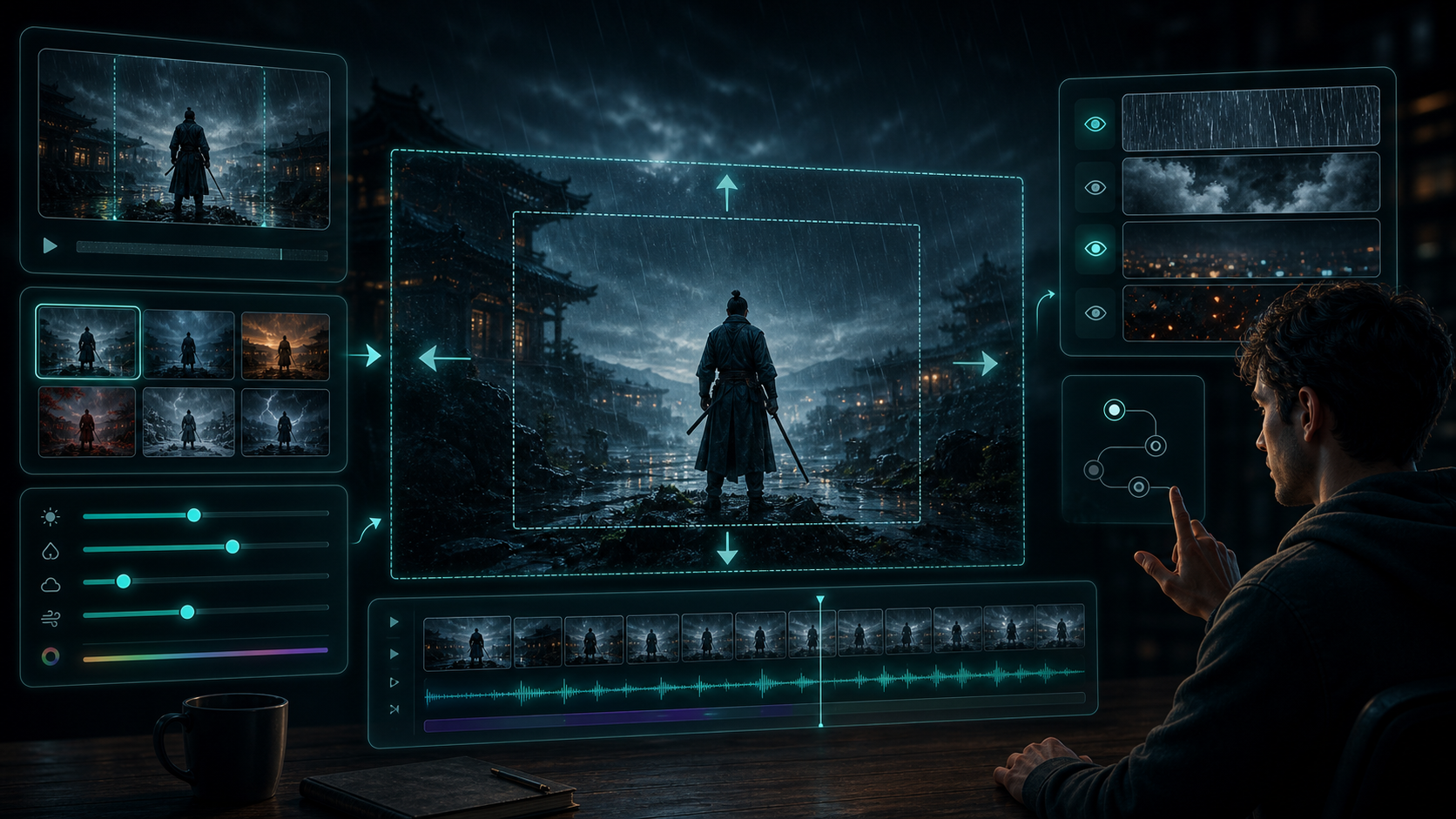
You have a video clip — a shot you generated, or footage you captured — and you need to change it. The framing is too tight. The weather is wrong. The lighting does not match.
Kling AI offers several ways to edit existing videos, but the capabilities are spread across different models (O1, O3, Omni, and the dedicated Video Extend tool). Each handles different types of edits. Some work remarkably well. Others fail consistently.
Knowing which is which saves you time and credits. I tested Kling AI's video editing capabilities across outpainting (frame extension), scene changes (weather, mood, setting), element editing (adding and removing objects), and style transfer — and mapped which approaches work, which source clips produce the best results, and when you should regenerate from scratch instead of editing. This guide covers the four main edit workflows and the limits of each.
Start by matching your task to the right edit method.
Quick Reference: Which Edit Method for Which Task
| If You Want To… | Use This Method | Best Source Clip |
|---|---|---|
| Extend the frame — add space around the edges | Video Extend / Outpaint | A clip with simple backgrounds |
| Change weather, time of day, or season | Kling O1 scene edit | A clip with clear environmental cues |
| Restyle the entire scene (look, texture, era) | Kling O3 video-to-video | A clip with strong compositional structure |
| Remove or replace an object or person | Kling O1 element edit | A clip where the object is clearly isolated |
| Add a new element that was not in the original | Kling O1 element edit | A clip with space for the new element |
| Change character clothing or appearance | Kling O1 scene edit | A clip where the character is the main subject |
The table covers the headline recommendation. Before diving into each method, here is a realistic overview of what these models handle well — and what they do not.
What Kling AI Can (and Cannot) Do With Existing Videos
Before diving into specific methods, it helps to understand what the underlying models handle well versus what consistently fails.
What works consistently:
- Extending video length (up to 2× original) with reasonable quality
- Changing environmental conditions — weather, lighting, time of day, season
- Removing clearly defined objects from simple backgrounds
- Restyling the overall look of a scene (cinematic, vintage, anime, etc.)
- Adding simple atmospheric effects — fog, rain, lens flare
What works sometimes:
- Outpainting (extending frame edges) — works on simple backgrounds, struggles with complex scenes
- Replacing a specific object with a different one — depends on object size and scene complexity
- Changing a character's clothing — works if the character is large in the frame, fails if they are small or moving fast
What does not work reliably:
- Adding detailed text (signs, logos, titles) — text warps and shifts
- Editing fast-moving subjects — the model cannot track the object across frames
- Multiple simultaneous edits — changing weather + adding an object + changing clothing on the same clip produces unpredictable results
- Fine detail changes on small areas of the frame — the edit boundary bleeds
Rule of thumb for editing vs regenerating: If the change you want is environmental (weather, lighting, style), editing is faster and more reliable. If the change is structural (different subject, different composition, different motion path), regenerating from scratch produces better results.
The first edit method changes the physical boundaries of your clip.
Method 1: Video Extend / Outpainting
Outpainting expands the frame beyond its original boundaries — turning a 16:9 clip into a 2.35:1 widescreen, or a vertical 9:16 clip into a landscape 16:9. This is useful when you need more headroom around a subject, or when you shot in one aspect ratio but need to deliver in another.
How to Do It
Kling AI offers a dedicated Video Extend tool for this at /app/video-extend/new.
- Upload your source clip. The tool accepts short clips (up to 10 seconds).
- Choose the target extension. The tool can outpaint to up to 2× the original length and expand the frame boundaries.
- Add an optional text prompt describing what should be in the extended area. For simple backgrounds, you can leave the prompt empty and let the model fill in plausible content.
- Generate. The model processes the clip and produces an extended version with auto-generated sound effects.
What Makes a Good Source for Outpainting
| Source Clip Type | Outpainting Quality | Why |
|---|---|---|
| Plain background (sky, wall, water) | Excellent — model fills in seamlessly | No conflicting content to resolve |
| Blurred background (shallow depth of field) | Good — model extends the blur pattern | The blur hides edge inconsistencies |
| Detailed scene with distinct objects | Poor — model invents content that may not match | The extended area may contain objects that conflict with the original |
| Human subject near the edge of the frame | Fair — model extends the body but may distort proportions | The subject is cut off, and the model must invent the missing part |
Expert Pitfall for Outpainting
Outpainting works best when the extended area is visually simple. If your clip has a person standing at the edge of the frame and you want to outpaint to show more of them, the model often distorts the body proportions — making the arm too long or the torso misshapen. For complex subjects near frame edges, consider recomposing the shot with a wider-angle prompt instead of trying to outpaint later.
Changing the frame size is one type of edit. Changing what is inside the frame is another — and often more useful.
Method 2: Scene Changes With Kling O1
Kling O1 is Kling's video editing model designed for modifying existing clips. It is the best tool for changing environmental conditions — weather, lighting, season, and time of day.
How It Works
- Upload your source video (up to 10 seconds).
- Describe the change in a text prompt. For example: "Change this sunny street scene to a rainy night. Wet pavement, reflections, dark blue lighting."
- Select the O1 model from the mode selector.
- Generate. The model re-renders the video with the new conditions applied while preserving the original composition and subject positions.
What O1 Scene Changes Handle Well
| Change Type | Prompt Example | Quality |
|---|---|---|
| Sunny → Rainy | "Change to heavy rain, wet pavement, gray sky" | ★★★★★ |
| Day → Night | "Transform to nighttime, street lights on, dark sky" | ★★★★☆ |
| Summer → Winter | "Add snow on the ground, bare trees, winter lighting" | ★★★★☆ |
| Interior lighting change | "Change to warm candlelight, dim room" | ★★★★☆ |
| Add fog or mist | "Add dense fog rolling through the scene" | ★★★★★ |
Prompt Tips for Scene Changes
- Be specific about the new condition, not the change itself. "Rainy night with neon reflections" works better than "make it rain."
- Keep the same subject in the prompt. If your prompt describes only the weather change, the model may reinterpret the subject. Add "keep the same person and their position" or include the original subject description.
- Start with subtle changes. "Add light fog" is more reliable than "Change to complete whiteout blizzard." The model handles gradual adjustments better than extreme transformations.
Scene changes alter the environment. Style changes alter the visual treatment of that environment.
Method 3: Style Transfer and Relighting With Kling O3
Kling O3 Video Edit is a video-to-video model that changes the overall look of a clip — applying a visual style, changing the color palette, or altering the lighting scheme.
How It Works
- Upload your source video. The O3 model accepts clips up to 10 seconds.
- Describe the target style. This can be a visual style ("cinematic," "film noir," "anime," "vintage 1970s film") or a specific look ("golden hour lighting," "cool blue tones," "high contrast black and white").
- Select the O3 model.
- Generate. The model re-renders the clip with the new style while preserving the original scene structure and motion.
Style Transfer Quality by Target Style
| Target Style | Quality | Notes |
|---|---|---|
| Cinematic / film look | ★★★★★ | Close to Kling's native output style |
| Black and white | ★★★★★ | Simple conversion, reliable |
| Vintage or period film | ★★★★☆ | Works well, color grade changes |
| Anime / cel-shaded | ★★★☆☆ | Inconsistent — some frames lose style |
| Specific artist or director style | ★★☆☆☆ | Rarely matches the reference accurately |
Rule of thumb for style transfer: If the style can be described in two words ("film noir," "golden hour," "cyberpunk"), it works. If the style requires a paragraph to explain, the model will not capture it consistently across all frames.
Style changes the whole frame. Adding or removing specific objects within it is a different capability entirely.
Method 4: Element Editing With Kling O1
Kling O1 can add, remove, or replace specific elements within a video — removing an unwanted object from the background, adding a new object, or changing an existing element.
Removing Elements
Removing an object or person works best when:
- The object is clearly separated from the background
- The background behind the object is relatively uniform
- The object is stationary or moving slowly
Prompt format: "Remove the [object] from the scene and fill in the background naturally."
Adding Elements
Adding something new to a scene works best when:
- There is clear space in the frame for the new element
- The element is described in simple visual terms
- The element does not interact with existing moving subjects (e.g., "add a street lamp" is easier than "add a bird that lands on the subject's shoulder")
Prompt format: "Add a [element] in the [location]. Match the lighting and style of the scene."
What Element Editing Struggles With
| Edit Type | Why It Struggles |
|---|---|
| Removing something from a complex, detailed background | The model cannot reconstruct the hidden content accurately |
| Adding an element that casts a shadow or reflection | The model does not calculate physics — shadows and reflections are often wrong |
| Editing a specific frame range (not the whole clip) | O1 applies edits to the entire clip, not a selected frame range |
| Removing reflections or transparency | Reflective surfaces create ambiguous content that the model fills incorrectly |
Across all four methods, one factor consistently determines success — the quality of the source clip.
Source Clip Requirements
Regardless of which edit method you use, the source clip quality determines the output quality.
| Requirement | Why It Matters |
|---|---|
| Stable, non-jittery footage | The model tracks changes per-frame; shaky footage confuses the edit boundary |
| Clear subject separation from background | The model needs to know what to change and what to leave alone |
| Duration of 10 seconds or less | All edit models have a 10-second maximum input length |
| Simple backgrounds for outpainting | Complex backgrounds produce artifacts in the extended area |
| No heavy compression artifacts | Compression artifacts become amplified during re-rendering |
Even with the right source clip and method, edits do not always succeed on the first attempt. Here is what to do when they do not.
When Editing Fails — and What to Do Instead
Not every edit succeeds on the first attempt. Here is what to do when an edit does not produce the expected result.
The edit did not apply to the right area.
- Make your prompt more spatially specific: "Add rain to the background only, keep the foreground dry" or "Change the left side of the frame to show a wall."
- If the model consistently edits the wrong area, try a different approach — crop the video to isolate the area you want to change, edit the cropped version, then composite it back with the original.
The output has visible artifacts or seams.
- Reduce the number of simultaneous changes. Change one thing at a time.
- Ensure your source clip is stable. Shaky footage produces shaky edits.
- If artifacts persist, the edit may be too complex for the model. Consider rerendering the clip from scratch with the desired conditions included in the original generation prompt.
The model ignored the prompt entirely.
- Check that you selected the correct model (O1 for scene/element edits, O3 for style transfer).
- Simplify the prompt. "Make it rainy" is more reliable than "Make it a gloomy autumn evening with light drizzle and fog rolling in from the left."
- If the model still ignores the prompt, the source clip may be too complex for editing. Rerender from scratch with the edit conditions included in the original prompt.
Expert pitfall for failed edits: The most common mistake is trying to fix a failed edit with another edit. If the first edit produced artifacts, a second edit on top of the artifacts amplifies them. Instead of editing the edited video, go back to the original source clip and try a different prompt or approach. Stacking edits never improves quality.
Frequently Asked Questions
Can I edit a Kling-generated video? Yes. Kling AI's edit tools accept any video — AI-generated or real footage — as long as it meets the source clip requirements.
Can I edit only part of a video (e.g., frames 20–40)? No. As of mid-2026, Kling AI's edit models apply changes to the entire clip. There is no frame-range selection. If you need to edit a specific segment, trim the video to that segment first, edit it, then composite the edited segment back with the original.
Does Kling O1 or O3 support video-to-video with a reference image? Kling O1 accepts a text prompt for the edit description but does not take a separate reference image for the edit target. The edit is described entirely through text. For style reference, the prompt must describe the look verbally.
Can I undo an edit? No. Each edit creates a new video. The original clip is not overwritten, but the edit itself cannot be undone — you must re-upload the original and try again.
How much do edits cost? Edits consume credits similarly to standard generation. The exact cost depends on the clip length, resolution, and edit complexity. Shorter clips and simpler edits cost less.
The four edit methods serve different purposes. Here is when to use each one.
Summary
Kling AI's video editing capabilities are spread across four methods, each suited to different types of changes:
- Video Extend / Outpaint — best for extending frame edges and changing aspect ratios. Works well on simple backgrounds.
- Kling O1 scene edits — best for weather, lighting, and environmental changes. The most reliable edit method overall.
- Kling O3 style transfer — best for changing the overall look of a clip. Works for simple two-word styles.
- Kling O1 element edits — best for adding or removing clearly defined objects. Works well on simple backgrounds, struggles with complex scenes.
The most common mistake is attempting complex edits on complex source clips. If the source clip has a busy background, fast motion, or multiple subjects, editing will produce artifacts — and a better path is to regenerate the clip with the desired conditions included in the original generation prompt.
Next step: If you need to change weather or scene conditions, start with Kling O1 — it is the most capable edit model for environmental changes. For outpainting, use the dedicated Video Extend tool. For help with source clip preparation, the Kling AI Image to Video Guide covers reference image and clip best practices that also apply to edit inputs.
Author

Categories
More Posts
Siri AI: Everything Apple Announced at WWDC 2026 — Features, Release, Devices & What Changed
What is Siri AI? A complete guide to Apple's revamped assistant announced at WWDC 2026 — conversational experience, personal context, onscreen awareness, App Intents, release timeline, compatible devices, language support, privacy, and how it compares to ChatGPT and Gemini.

HappyHorse 1.0 Is Live: What It Means for Kling 3.0 Creators
HappyHorse 1.0 has reached the top of the Artificial Analysis video leaderboards. Here is what Kling 3.0 creators should watch, what is verified, and where Kling still fits.
Kling 3.0 Rumors: What to Expect From Kuaishou's Next-Gen AI Video Generator
Explore the confirmed features and speculations about Kling 3.0, including 4K/60fps support, advanced physics engine, and unified editing interface.
Newsletter
Join the community
Subscribe to our newsletter for the latest news and updates