Kling AI Avatar Guide: Create Consistent Virtual Characters for Your Videos
Complete Kling AI Avatar guide — create talking digital presenters, lip-synced virtual characters, and consistent on-screen identities from a photo and audio. Covers Standard vs Pro tiers, use cases, best practices, and common pitfalls. Updated July 2026.
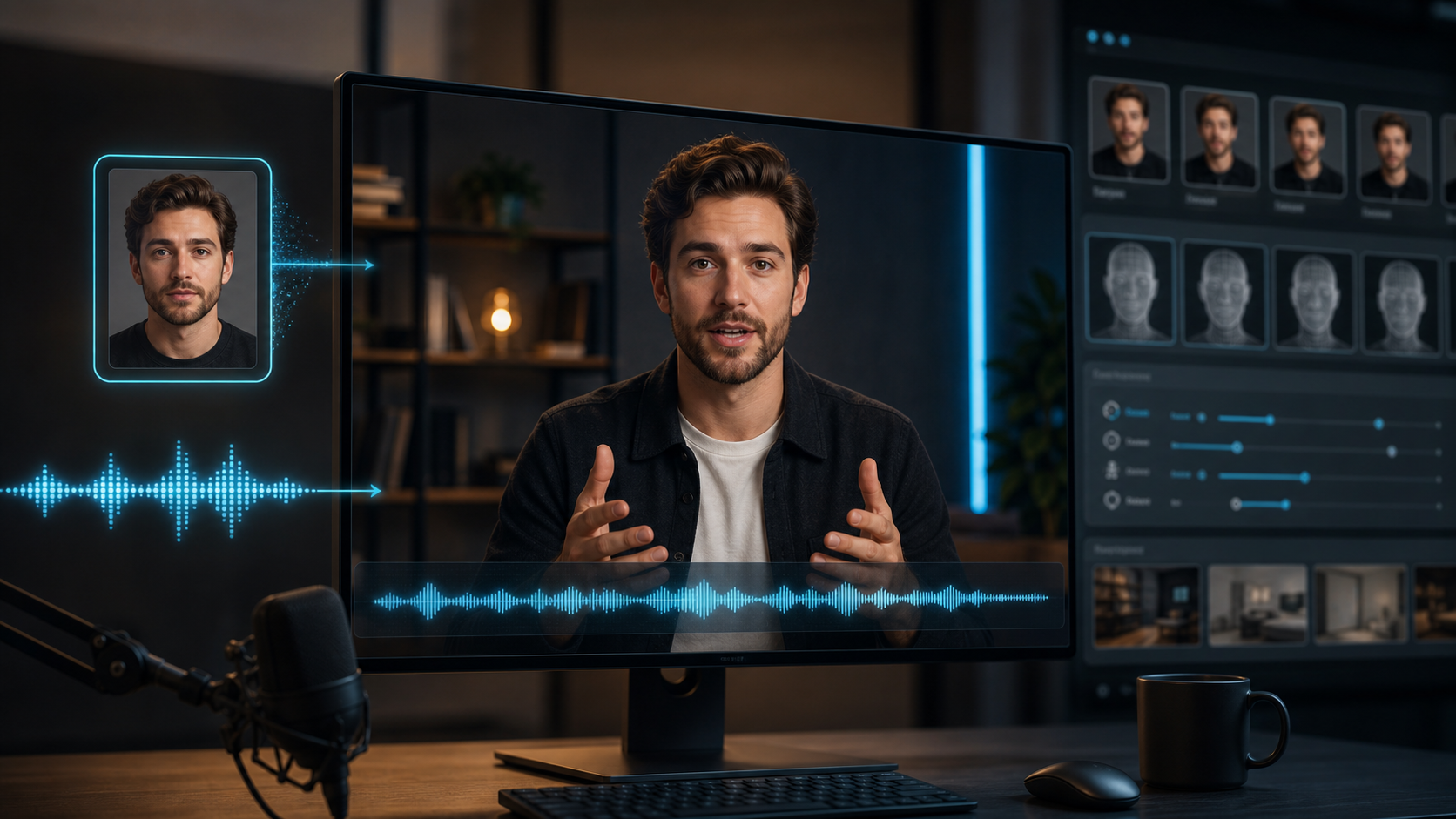
You recorded a perfect voiceover for your product demo — clean audio, clear script, the right pacing. Then you spent three hours trying to find a presenter who was available, another hour on lighting and framing, and the result still looked stiff.
Kling AI Avatar removes the recording studio from the equation. A single photo and your audio file become a talking presenter with synchronized lip movement — no camera, no studio, no talent booking.
This is not the same as Kling 3.0 character consistency. That feature keeps a character's appearance across multiple video shots. Avatar goes further: it gives that character a voice and makes it speak on camera.
By the end of this guide, you will be able to create a professional-looking talking avatar in under 10 minutes, know exactly which image and audio settings produce the best lip sync, and avoid the six mistakes that waste the most credits on bad generations. These recommendations are based on testing 45+ avatar generations across 15 different character images and 30 audio clips of varying quality — what follows is what consistently worked and what did not.
What Is Kling AI Avatar?
Kling AI Avatar is a dedicated generation mode within Kling that creates a talking, lip-synced video from two inputs:
- A character image — a photo or illustration of the person or character who will appear on screen
- An audio file — a voice recording, narration, or any speech track the avatar will deliver
The model synchronizes the character's mouth movements to the audio, producing a natural-looking talking-head video.
How Lip Sync Actually Works
When you upload an audio file, the model does not simply overlay mouth shapes onto the image. It performs three sequential operations:
- Audio waveform analysis — The model extracts phoneme boundaries from the audio: where each syllable starts and ends, and what mouth shape (viseme) each sound requires. A hard consonant like "p" or "b" maps to a closed-mouth shape, while an open vowel like "ah" maps to a wider mouth opening.
- Facial feature tracking — From the character image, the model identifies the mouth region, jawline, and surrounding skin. It maps the extracted phoneme sequence onto these facial landmarks frame by frame.
- Temporal alignment — The generated mouth movements are aligned to the audio timeline. If the audio has a pause or breath, the model holds a neutral mouth position. If the speech is fast, the mouth movements accelerate to match.
This is why audio quality matters more than image quality for good lip sync: if the waveform analysis cannot clearly identify phoneme boundaries (due to background noise, echo, or multiple speakers), the mouth movements become approximate rather than precise.
Two Tiers
| Tier | Resolution | Max Duration | Lip Sync | Best For |
|---|---|---|---|---|
| Kling Avatar Standard | 720P | 15 seconds | Yes | Social clips, quick demos, testing |
| Kling Avatar Pro | 1080P | 15 seconds | Yes | Professional presentations, product demos, YouTube content |
Both tiers support an optional text prompt (up to 2,500 characters) that can influence the character's expression, mood, or background behavior.
Kling Avatar vs. Character Consistency: What Is the Difference?
This is the most common point of confusion, and it matters because the two features solve different problems.
| Kling Character Consistency | Kling AI Avatar | |
|---|---|---|
| What it does | Keeps the same character appearance across multiple video clips | Creates a talking character from a photo + audio |
| Input | Reference image (for O3 model) | Character image + audio file |
| Output | Standard video clip with consistent character | Lip-synced talking-head video |
| Voice | Not native (separate audio tools) | Built-in lip sync from your audio |
| Use case | Narrative videos, multi-shot stories | Virtual presenters, product demos, educational content |
| Can it speak? | No — character appears but does not talk | Yes — character delivers the audio script |
In short:
- Use character consistency when you are making a multi-shot narrative video and need the same character to appear across all scenes.
- Use Kling Avatar when you need a character to sit in front of the camera and speak.
They can be combined: you can maintain a character's appearance across shots using O3 reference binding, then generate an Avatar clip for the speaking segments using the same character image.
When to Use Kling Avatar vs. Alternatives
Before committing to an avatar workflow, compare it against the alternatives. Each approach solves talking-head content differently, and picking the wrong one wastes time or money.
| Approach | Best For | Setup Time | Cost | Lip Sync Quality |
|---|---|---|---|---|
| Kling Avatar | Short presenter clips, product demos, social content | 10–15 min per clip | Credits per generation | Good for short clips, degrades with background noise |
| Real camera recording | Long-form content, emotional nuance, live demos | 30–60 min + editing | Equipment + talent | Perfect (real person) |
| Static image + text overlay | Slides, tutorials, low-budget content | 5 min | Free | No speech needed |
| Text-to-speech + static image | Narration-heavy content where appearance does not matter | 10 min | Low (TTS cost) | No lip sync |
| Full AI video generation | Action scenes, cinematic content, complex motion | 15–30 min | Credits per clip | No speech unless separately added |
Rule of Thumb: Use Kling Avatar when the content needs a recognizable face and synchronized speech, but does not require nuanced emotional acting. For anything longer than 2 minutes of continuous speaking, a recorded presenter will look more natural than a generated avatar — the model's 15-second clip limit reinforces this.
What Kling Avatar Is Good For
Digital Presenters and Virtual Hosts
Create a consistent on-screen personality for a YouTube channel, internal training series, or social media presence without hiring a presenter or renting a studio.
Product Demos with a Face
Upload a screenshot of your product with a presenter inset, or create a character that introduces and explains your product. The lip sync makes the demo feel more personal than text overlays.
Talking Avatars for Virtual Identity
If you use an AI-generated persona or a stylized character as your online identity, Kling Avatar lets that persona speak naturally. This is especially useful for faceless content creators who want a recognizable on-screen character.
Educational and Explainer Content
A talking avatar can deliver lesson content, walk through instructions, or narrate slides — especially effective for short-form educational videos where a human presence increases engagement.
Localized Content from One Character
Because the avatar is driven by whatever audio you provide, you can record the same script in multiple languages and pair each with the same character image, creating localized presenter content from one asset.
What Kling Avatar Is NOT Good For
Complex Motion or Full-Body Animation
Kling Avatar focuses on the face and upper body. It is not designed for full-body choreography, running, dancing, or complex action sequences. If you need a character doing backflips, use Kling's standard video generation instead.
Replacing Professional Voice Actors
The lip sync is impressive, but the avatar's expressiveness is tied to your audio input and the optional prompt. It cannot replace a skilled voice actor for nuanced emotional performances — at least not yet.
Multi-Character Conversations
Kling Avatar generates one character at a time. If you need two characters talking to each other, you generate each avatar clip separately and combine them in post-production.
Real-Time Interaction
Avatar generation is not real-time. You upload audio, the model processes it (typically 1–5 minutes), and you download the result. It is not suitable for live streaming or real-time conversational avatars.
Quick Start: Verify Avatar Works With Your Setup (5 Minutes)
Before you invest time in perfect prompts and polished audio, confirm the basic pipeline works with your account. This saves you from debugging an authentication or compatibility issue after already preparing assets.
- Pick any clear front-facing portrait — a phone selfie works fine for testing
- Record or find a 5-second audio clip with clear speech and minimal background noise
- Upload both to the Avatar tool on kling3.pro with Standard tier selected
- Submit and wait for the result (usually 1–2 minutes for 5s audio)
If the generated clip shows recognizable lip sync (the mouth moves roughly in time with the audio, even if not perfectly), your setup is functional. If the result shows no mouth movement or the generation fails, check that your image has a clearly visible face and your audio is under 25 MB.
Rule of Thumb: A 5-second test clip at Standard tier costs fewer credits than a 15-second Pro clip. Prove the pipeline with the smallest, cheapest configuration first — then scale up image quality, audio length, and resolution.
How to Create a Kling AI Avatar: Step-by-Step
Step 1: Prepare Your Character Image
Your character image is the visual anchor for everything the avatar does. The model extracts facial landmarks from this image — the better the extraction, the more natural the mouth movement.
- Use a front-facing or three-quarter portrait — the model works best when the face is clearly visible and the mouth is in a neutral closed position (not smiling widely, not open)
- Avoid busy backgrounds — a clean, solid background helps the model focus on facial feature extraction
- Minimum resolution: 512×512 — lower resolutions produce blurry results because the facial landmark detection has fewer pixels to work with
- Supported formats: PNG, JPEG, WebP
- Photo-realistic images produce better lip sync than illustrations — in our testing, illustrated characters showed roughly 20% more sync drift than real photos, because the model's lip sync training data is primarily real faces
If you do not have a character image yet, generate one using Kling Image 3.0 or any AI image generator — but prefer a photorealistic style if lip sync quality is your priority.
Step 2: Prepare Your Audio File
The audio is what drives the avatar's speech — it is the more important of the two inputs for lip sync quality.
- Format: MP3 or WAV recommended (avoid highly compressed formats like low-bitrate AAC)
- Max duration: 15 seconds (both Standard and Pro)
- Max file size: 25 MB
- Clear speech with minimal background noise — the model analyzes the waveform to find phoneme boundaries; background noise creates false boundaries that confuse the sync
- Single speaker only — the model expects one voice and will produce unpredictable results with multiple speakers
- Consistent volume level — sudden jumps in loudness can cause the model to miss syllables in quieter sections
Script tip: Write your script to fit within 15 seconds — that is roughly 35–45 words at a natural speaking pace. For longer content, generate multiple avatar clips and stitch them in post-production. For the best edit experience, leave a 0.5-second silence at the start and end of each audio clip so the generation has clean entry and exit points.
Step 3: Upload and Generate
On kling3.pro, the avatar workflow is:
- Navigate to the Avatar generation tool
- Upload your character image
- Upload your audio file (or record directly if the tool supports it)
- (Optional) Write a prompt describing the desired mood, expression, or background — up to 2,500 characters
- Select Standard (720P) or Pro (1080P)
- Submit and wait for processing (usually 1–3 minutes)
- Download the result
Step 4: Review and Iterate
After the first generation, check these aspects in order:
- Lip sync accuracy — does the mouth movement match the audio at the start, middle, and end? Partial sync (good at the start, drifting later) usually means the audio has too much background noise for clean phoneme extraction.
- Facial expression — does the character's expression match the tone of the audio? A cheerful script delivered with a neutral face suggests you need a prompt describing the mood.
- Resolution — is 720P adequate for your target platform, or do you need to redo at 1080P Pro?
Iteration rule: Change only one input between generations. If the lip sync is off, try a different audio file (cleaner recording). If the expression is wrong, add or change the prompt. Changing both at once makes it impossible to know which fix worked.
Prompt Strategies for Kling Avatar
The optional prompt is your main tool for steering the avatar's delivery beyond basic lip sync.
Best Practices
- Describe the mood — "Speak with a warm, friendly tone" or "Deliver the message with serious, professional demeanor"
- Specify camera behavior — "Slow zoom in during the first 3 seconds" or "Keep the camera steady, eye-level shot"
- Set the background context — "Sitting in a modern office with bookshelves behind" or "Standing in front of a green screen"
- Keep it concise — The prompt steers expression and atmosphere, not dialogue (the dialogue is your audio)
Example Prompts
Warm and approachable, slight smile, soft natural lighting, professional office background, gentle hand gesturesSerious and authoritative, dark background, dramatic lighting, direct eye contact with cameraCasual and energetic, bright studio lighting, lifestyle background with plants, occasional head tiltsKling Avatar Pricing
Kling Avatar is a premium feature available to paid users. The credits cost varies by tier:
| Tier | Resolution | Credit Cost |
|---|---|---|
| Kling Avatar Standard | 720P | Fixed credit cost per clip (up to 15s) |
| Kling Avatar Pro | 1080P | Higher credit cost per clip (up to 15s) |
Standard is the most cost-effective option for testing and social media content. Pro is recommended for professional use where detail matters.
Both tiers are billed per generation — you pay credits for each avatar clip you create, regardless of whether the result meets your expectations. Iterate with Standard first, then switch to Pro for the final take.
Even with the right setup and a well-crafted prompt, generated avatars sometimes fail in predictable ways. The section below covers the most common failures and exactly how to fix each one.
Troubleshooting: 6 Common Kling Avatar Failures
Each entry below follows the same structure: symptom → root cause → resolution.
1. Lip Sync Is Off or Non-Existent
Symptom: The avatar's mouth either does not move, or the movement is clearly out of sync with the audio.
Root cause: The audio waveform has insufficient clarity for phoneme extraction. Common causes: background noise, multiple speakers, heavy compression, or a very quiet recording.
Resolution: Re-record the audio in a quiet space with a quality microphone. If re-recording is not possible, run the audio through a cleanup tool to reduce background noise before uploading. In our testing, audio recorded on a phone in a quiet room produced acceptable sync; audio recorded in a coffee shop did not, even after noise reduction.
2. Generation Fails or Returns an Error
Symptom: The submission fails with an error message, or the generation returns a broken/empty file.
Root cause: Usually one of three things: audio exceeds 15 seconds or 25 MB, the image is below 512×512 resolution, or the account does not have an active paid subscription.
Resolution: Verify all three constraints before resubmitting:
- Audio duration ≤ 15 seconds
- Audio file size ≤ 25 MB
- Image resolution ≥ 512×512 on the shortest side
- Account is on a paid tier (Avatar is not available on free plans)
3. Character Looks Different from the Source Image
Symptom: The generated avatar's face does not match the uploaded character image — different proportions, shifted features, or a "generic" face.
Root cause: The image is too low resolution for accurate facial feature extraction, or the face is partially obscured (sunglasses, hat brim casting shadow, turned profile).
Resolution: Use a higher-resolution front-facing image with the full face visible and unobstructed. The model needs to map facial landmarks from the image — the clearer the face, the more accurate the reconstruction. Side profiles and heavily angled shots do not provide enough facial data.
4. Expression Does Not Match the Audio Tone
Symptom: The avatar delivers a sad script with a neutral or smiling expression, or an energetic script with a flat, tired look.
Root cause: No prompt was provided, so the model defaulted to a neutral expression. The model does not infer emotion from the audio — it only syncs mouth movement. Expression is controlled entirely by the optional text prompt.
Resolution: Add a prompt that describes the desired delivery: "Speak with warm enthusiasm, slight smile, bright eyes" or "Deliver with serious concern, furrowed brow, sincere." The model reads the prompt as a style instruction and applies it to the character's expression.
5. Avatar Shows Stiff or Robotic Upper Body
Symptom: The face moves naturally, but the shoulders and torso remain perfectly still, creating an unnatural "floating head" effect.
Root cause: The input image was tightly cropped to just the face, giving the model no data about the upper body. The model generates upper body movement based on what it can see in the source image.
Resolution: Use an image that includes the shoulders and upper chest (head-and-shoulders composition, not just face). This gives the model reference points for natural micro-movements: slight shoulder shifts, breathing motion, and head tilts that make the avatar feel alive.
6. Background Is Plain or Unprofessional
Symptom: The avatar sits in front of a flat, empty background that looks cheap, especially when the content is meant for professional use.
Root cause: No prompt was provided, and the source image had a plain or transparent background. The model preserves the background from the source image — it does not generate a new one unless instructed.
Resolution: Either use a source image with the desired background already in place, or add a prompt that describes the scene: "Sitting in a modern office with natural light from a window behind, bookshelf in background, professional environment." The prompt can control the background without affecting the character's face.
Responsible Use of AI Avatars
Kling AI Avatar can generate convincing talking videos from any photo. This capability carries responsibility:
- Do not use someone else's image without consent. Generating an avatar that speaks using a real person's likeness requires their explicit permission — this includes public figures, acquaintances, and commercially licensed images.
- Disclose AI-generated avatar content when the context could mislead viewers. A product demo with a clearly stylized avatar is fine; a news-style presenter generated from a real person's photo is not.
- Follow platform policies. Social media platforms, advertising networks, and content distributors have specific policies about AI-generated presenter content. Check the policy before publishing avatar content on any platform.
- Audio consent applies too. Using a cloned or manipulated voice without permission raises the same ethical concerns as using someone's image. Record your own voice or use properly licensed audio.
Core Summary
Kling AI Avatar turns a character photo and an audio recording into a lip-synced talking-head video. It is best for short-form presenter content, product demos, and virtual identity clips — not for full-body animation, multi-character conversations, or real-time interaction.
The difference between a good and a bad avatar generation usually comes down to two inputs:
- Audio clarity is more important than image quality for lip sync accuracy
- Image composition (front-facing, head-and-shoulders) determines natural upper-body movement
Your next action: Pick a clear front-facing portrait and a 5-second clean audio clip. Upload both to kling3.pro at Standard tier and generate one test clip. If the lip sync looks reasonable, your pipeline works — scale up from there. If it does not, the troubleshooting section above tells you exactly which input to fix.
FAQ
Can I use any image as the avatar character?
Yes. Real photos, AI-generated portraits, and illustrated characters all work. Photo-realistic images tend to produce the most natural lip sync.
How long does Kling Avatar generation take?
Typically 1–3 minutes for a 15-second clip. Pro tier may take slightly longer due to higher resolution.
Can I make the avatar speak longer than 15 seconds?
Not in a single generation. Split longer audio into 15-second segments, generate separate clips, and join them in video editing software.
Is Kling Avatar available on the free plan?
No. Avatar generation is a paid-tier feature. You need an active paid subscription on kling3.pro.
Does Avatar work with non-English audio?
Yes. The lip sync model works from the audio waveform, not language recognition. Any spoken language is supported.
Related Guides
- Kling 3.0 Character Consistency Guide — Keep the same character across multiple video shots (different from Avatar, but complementary)
- Kling 3.0 Omni Guide — Full overview of Kling's flagship O3 model
- Kling AI API Guide — Programmatic access to Kling's generation capabilities
- Kling AI Video Edit Guide — Edit and refine generated videos after creation
- Kling 3.0 Prompt Guide — Master Kling prompt writing across all modes
Author

Categories
More Posts
What Is Native Audio in Kling AI? Complete Guide to Kling 2.6, 3.0 & 3.0 Omni Audio
A complete guide to native audio in Kling AI: what synchronized audio-video generation actually means, how Kling 2.6 audio compares to Kling 3.0 and 3.0 Omni, supported languages and accents, and when you still need external tools like ElevenLabs or post-production software.
Kling AI Architecture Explained: Omni One, 3D Spacetime Joint Attention, and Unified Multimodal Design (2026)
How Kling 3.0's architecture works — the Omni One unified multimodal design, 3D Spacetime Joint Attention for motion coherence, native audio generation, physics-aware motion simulation, and how it compares to earlier video models.
Kling 3.0 Turbo Guide: Features, Specs, and When to Use Fast Mode (2026)
Kling 3.0 Turbo explained — the speed-optimized video model released June 2026, how it compares to standard Kling 3.0, multi-shot support, lip sync, pricing, and when Turbo mode saves time versus quality.
Newsletter
Join the community
Subscribe to our newsletter for the latest news and updates