How to Create Multi-Scene Videos in Kling 3.0: Multi-Shot Guide (2026)
How to create multi-scene videos with Kling 3.0's multi-shot feature — auto and custom modes, writing shot prompts like a director's shot list, camera angle control, character consistency, and best practices for up to 6 shots per generation.
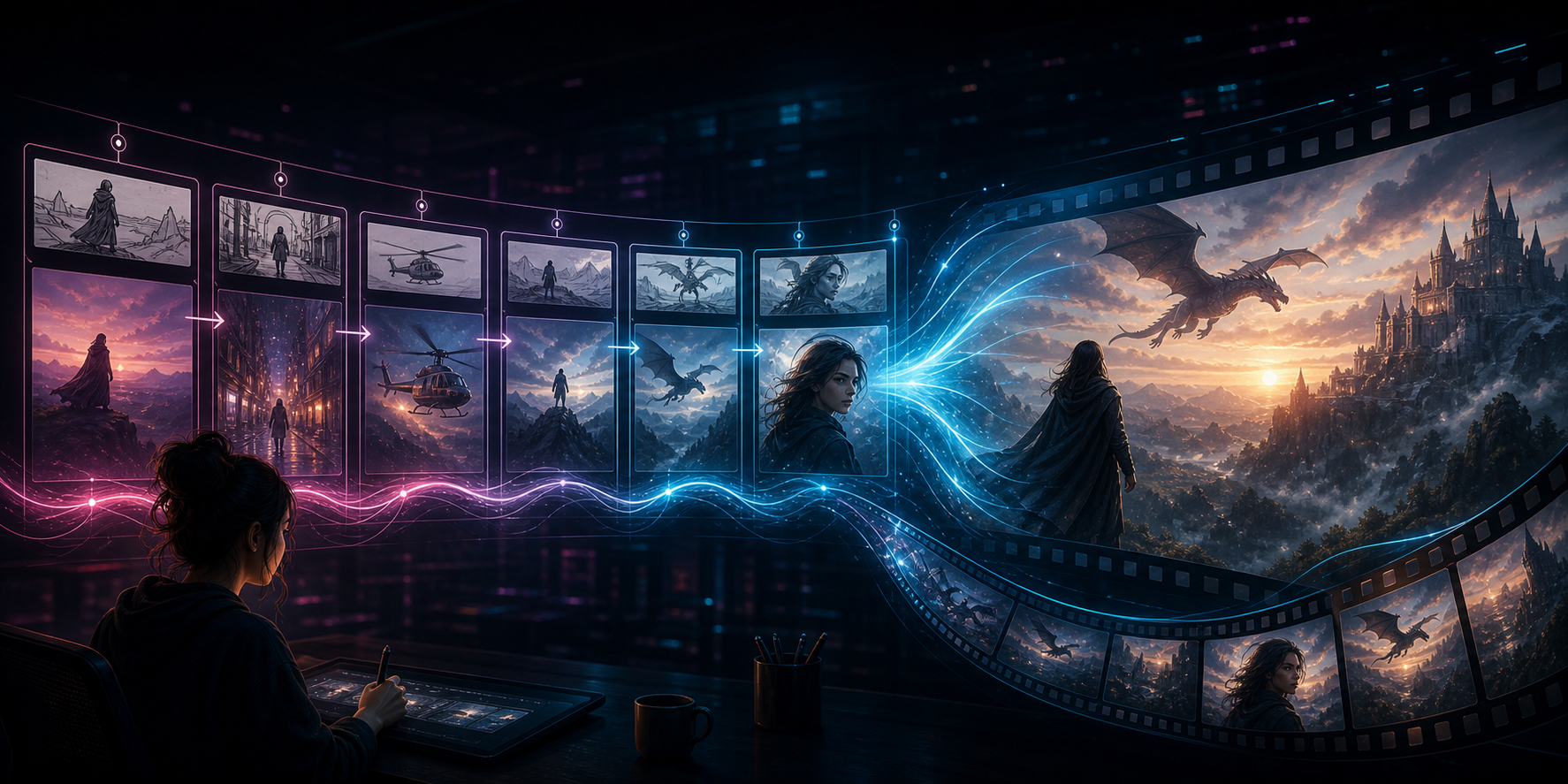
Kling 3.0 can generate up to six connected camera shots in a single generation — with consistent characters, lighting, and audio across all of them. This is the multi-shot feature, and it is the biggest difference between Kling 3.0 and earlier AI video models that could only produce single-shot clips.
Instead of generating one 5-second clip, then another, then editing them together, multi-shot lets you describe each shot — camera angle, action, duration, dialogue — and Kling 3.0 produces a seamless sequence with smooth transitions.
This guide covers how multi-shot works, the two available modes, how to write effective shot prompts, and best practices for getting consistent results.
At a Glance
| Feature | Details |
|---|---|
| Maximum shots per generation | 6 |
| Maximum total duration | 15 seconds |
| Camera control | Per-shot (dolly, arc, over-the-shoulder, etc.) |
| Character consistency | Via Elements 3.0 reference images |
| Audio | Native per-shot dialogue support |
| Modes | Auto Multi-Shot and Custom Multi-Shot |
How Multi-Shot Works
Multi-shot is part of Kling 3.0's Director Mode. Instead of a single text prompt that describes one scene, you provide multiple shot descriptions — one for each camera angle — and the model generates a continuous sequence that connects them.
The model handles:
- Transitions between shots automatically (cut, dissolve, or based on the camera movement described)
- Character and scene consistency across shots (the same person in the same setting, seen from different angles)
- Timing — each shot has a specified duration, and the total across all shots cannot exceed 15 seconds
Two Modes: Auto and Custom
Auto Multi-Shot
In Auto mode, you describe the overall scene, and Kling 3.0 decides how many shots to use and what angles to show. The model handles shot planning, camera placement, and transitions automatically.
Best for: Quick exploration, testing concepts, when you care more about the content than precise camera placement.
How to use it:
- Enable Multi-Shot in the generation settings.
- Write a single prompt describing the overall scene.
- The model generates a multi-shot sequence based on its interpretation of your prompt.
Custom Multi-Shot
In Custom mode, you define each shot individually — camera angle, duration, action, and dialogue. The model follows your shot list and connects them into a coherent sequence.
Best for: Precise storytelling, specific camera requirements, when you need control over the visual narrative.
How to use it:
- Enable Custom Multi-Shot in the generation settings.
- Leave the main prompt box empty.
- Add individual shot prompts — one for each camera angle.
- Set the duration for each shot (total across all shots must be 15 seconds or less).
- Generate.
Writing Shot Prompts
Each shot prompt should read like a director's shot list. Include these elements:
Format:
[Duration] [Shot type] of [subject], [action], [lighting/mood], [camera movement].Example:
3s Wide shot of a woman walking through a market, golden hour lighting, camera tracks left as she walks.Shot Types to Use
| Shot Type | When to Use |
|---|---|
| Wide shot | Establishing a scene, showing environment |
| Medium shot | Character interaction, dialogue |
| Close-up | Emotional moments, detail focus |
| Over-the-shoulder | Conversation, perspective shots |
| Low angle | Power dynamic, dramatic effect |
| High angle | Vulnerability, overview |
| Dolly-in | Building tension, focusing attention |
| Arc shot | Revealing a scene, dynamic movement |
Keeping Characters Consistent
To maintain the same character across multiple shots, use the Elements 3.0 feature:
- Upload a reference image of the character before generating.
- Reference the character in each shot prompt using the designated tag format.
- The model keeps the character's appearance consistent across all six shots.
Without a reference image, the model may interpret the character's appearance differently in each shot — especially for detailed attributes like clothing, hair, or facial features.
Example Multi-Shot Prompt Sequence
Here is a complete 6-shot sequence for a 15-second narrative:
| Shot | Duration | Description |
|---|---|---|
| 1 | 3s | Wide shot of a city street at night, rain falling, neon signs reflecting on wet pavement |
| 2 | 2s | Medium shot of a man in a trench coat standing under an awning, looking at his watch |
| 3 | 3s | Close-up of the man's face, rain dripping from the awning behind him, worried expression |
| 4 | 2s | Over-the-shoulder shot showing what the man is looking at — an empty street corner |
| 5 | 3s | Low angle shot of a street lamp flickering, rain visible in the light |
| 6 | 2s | Wide shot pulling up to reveal the full street, the man walks away into the rain |
This sequence tells a complete micro-story in 15 seconds using six camera angles, without any external editing.
Best Practices
Plan Your Shots Before Writing
Decide what each shot needs to communicate before you write the prompts. A simple shot list on paper or in a note helps avoid gaps in the narrative.
Keep Total Duration Under 15 Seconds
The 15-second limit includes all shots combined. Allocate time based on importance — establishing shots and key moments get more time; transitions and reaction shots get less.
Use Reference Images for Characters
Elements 3.0 reference images are the most reliable way to maintain character consistency across shots. Without them, the model may change appearance details between angles.
Specify Camera Movement in Each Shot
Including camera direction in each shot prompt produces more dynamic sequences. "Static wide shot" and "dolly-in close-up" produce noticeably different results.
Lock Audio Per Shot
If your sequence includes dialogue, specify it in the relevant shot prompt. Kling 3.0 generates native audio aligned with each shot, including voice, tone, and ambient sound.
Frequently Asked Questions
Can multi-shot generate videos longer than 15 seconds? No. The total duration across all shots in a single generation is capped at 15 seconds. For longer sequences, generate multiple multi-shot clips and edit them together.
Can I mix auto and custom shots in the same generation? No. You choose one mode per generation — either Auto (model decides shots) or Custom (you define each shot).
Does multi-shot work with video-to-video? Yes. You can upload a reference video as a base and use Custom Multi-Shot to define how each segment should be reimagined. The model preserves the core action and composition while applying your shot directions.
How many characters can multi-shot handle? Multi-shot maintains consistency for one primary character per generation using Elements 3.0. Scenes with multiple characters may show reduced consistency across shots.
Can I use multi-shot without audio? Yes. Multi-shot generates video by default; audio is optional. Specify audio requirements in each shot prompt if needed.
Summary
Kling 3.0's multi-shot feature lets you generate up to six connected camera shots in a single 15-second generation, with consistent characters and optional native audio.
- Auto Multi-Shot — describe the scene, let the model plan the shots
- Custom Multi-Shot — define each shot individually with camera angle, duration, and action
The key to good results is structuring your prompts like a director's shot list: specify the shot type, subject, action, and camera movement for each shot, and use reference images to lock character consistency.
Author

Categories
More Posts

Kling 3 Lite Guide: Free Trial Limits, Credits, and When to Upgrade
See how Kling 3 Lite works on kling3.pro. Learn the free trial limits, guest and sign-up credits, the 5s 480p cap, and the cheapest path to Kling 3.0.
Kling 3.0 Rumors: What to Expect From Kuaishou's Next-Gen AI Video Generator
Explore the confirmed features and speculations about Kling 3.0, including 4K/60fps support, advanced physics engine, and unified editing interface.
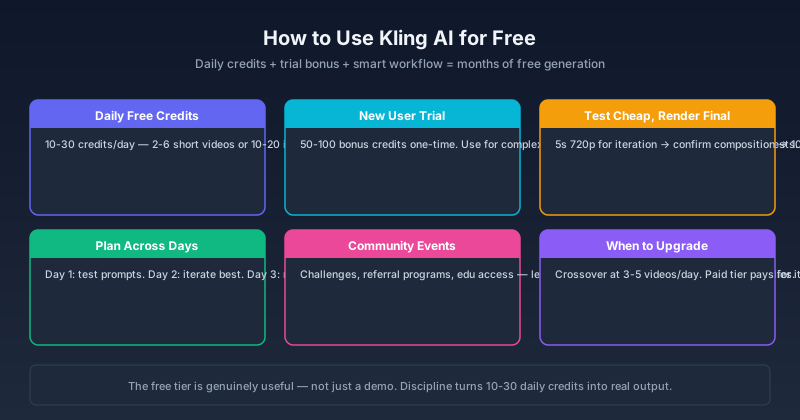
How to Use Kling AI for Free in 2026: Credits, Methods & What Actually Works
A practical guide to using Kling AI for free — daily credits, free trial strategies, community methods, and the real limits. Covers Kling 3.0, free credit resets, and how to maximize free access across Kling V3 and O3.
Newsletter
Join the community
Subscribe to our newsletter for the latest news and updates