Kling AI Image to Video: Complete Workflow Guide for 2026
Master Kling AI image-to-video generation — from single-image animation and multi-reference workflows to motion control, character consistency, and output optimization. Step-by-step guide with real examples.
You have a product photo, a character design, or a scene you want to animate. You upload it to Kling, write a prompt, and the model generates a 5-second clip. The first result is usable. The second is better. By the fifth generation you realize you have been operating on guesswork — tweaking prompts without knowing which parameter actually matters.
That gap is what this guide closes.
Image-to-video is where Kling AI 3.0 — updated in early 2026 with enhanced motion control, multi-reference binding, and improved temporal consistency — does its best work. But only when you understand how the model translates your static image into motion. Most users treat it as "upload and pray." The difference between a generic output and a commercial-grade result comes down to three things: image selection, prompt structure, and motion parameter discipline.
I have tested Kling's image-to-video across 40+ generations spanning single-image animation, multi-reference character bindings, and motion-controlled sequences. This guide distills what consistently works, what fails, and how to get professional results without burning credits on guesswork.
How Kling AI Image-to-Video Works
Kling 3.0's image-to-video pipeline processes two inputs simultaneously: your reference image and your text prompt. The model extracts a latent representation of the image — encoding subject identity, depth map, color palette, and composition — then applies the motion described in the prompt to that latent structure.
Unlike text-to-video, where the model must invent both the visual and the motion from scratch, image-to-video starts with a locked visual foundation. This changes what you need to optimize:
- More predictable results — the subject, colors, and composition come from your image, not a text description with ambiguous interpretation
- Better character consistency — the model references a real face or figure, not a composite of text descriptors
- Less prompt dependency — the image carries most of the visual information; the prompt only needs to guide motion, camera behavior, and atmosphere
The trade-off: image-to-video typically costs 20–50% more credits than text-to-video because the model has to process and align two input modalities simultaneously. Multi-reference mode (Kling O3) costs more than single-image, and motion-controlled mode costs the most — but each tier gives you correspondingly more control over the output.
The Three Types of Kling Image-to-Video
Kling 3.0 supports three levels of image-to-video. Which one you need depends on your starting material and your goal:
| Use Case | Recommended Mode | Why |
|---|---|---|
| Animate a single product photo or portrait | Single Image Animation | One image, one prompt, lowest cost |
| Create multiple videos of the same character across scenes | Multi-Reference (O3) | Bind subject once, change environment freely |
| Precise control over how specific elements move | Motion-Controlled I2V | Draw motion paths, set camera curves |
| You want to test if I2V works for your content | Single Image Animation (5s 720p) | Fast iteration, minimal credit spend |
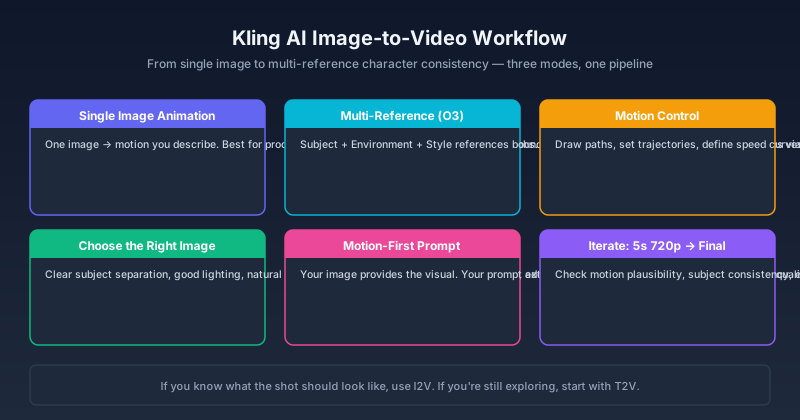
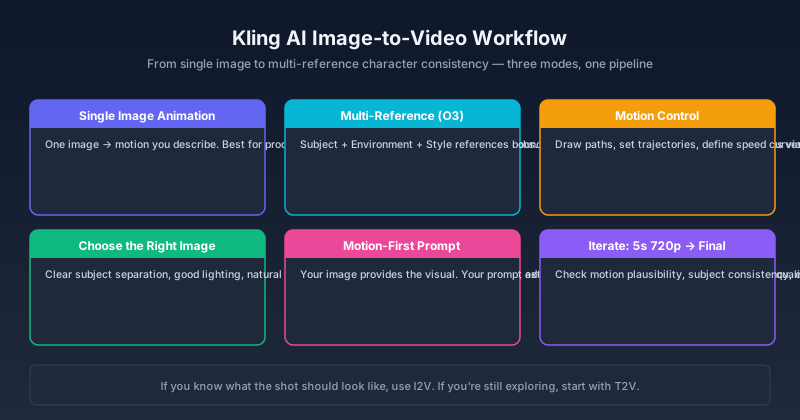
1. Single Image Animation
What it does: Takes one image and animates it with motion you describe.
Best for: Product showcases, portrait animation, landscape cinemagraphs, simple motion graphics.
Prompt focus: Describe motion, camera movement, and duration. The visual is already in the image — your prompt adds what the image cannot show.
Example: Upload a product photo on a white background → prompt "Slow 360° rotation around the product, soft studio lighting, macro detail shot" → Kling generates a rotating product video that looks like a professional commercial.
Expert pitfall: The most common mistake in single-image mode is over-describing the subject. If your prompt says "a black ceramic mug with a clean minimalist design sitting on a wooden table" while your image already shows the mug, you waste prompt capacity and confuse the model. Let the image handle visuals. Keep prompts to motion and camera only — typically 8–15 words.
2. Multi-Reference Image-to-Video (Omni / O3)
What it does: Uses multiple reference images to guide the generation. Kling 3.0 Omni (O3) supports subject binding, where you provide reference images for the character, the environment, and the style separately.
Best for: Character-driven content, branded campaigns, consistent multi-shot sequences.
How it works:
- Subject reference — a clear image of your character/product
- Environment reference — the setting or background
- Style reference — the desired visual aesthetic
Kling O3 binds these references together, maintaining the subject identity across different environments and motions. This is the feature that makes recurring-character content viable.
Expert pitfall: More references do not always mean better results. Kling 3.0 Omni supports up to 5 reference images, but practical testing shows that 2–3 produce the best balance of control and quality. Beyond 3, each additional reference provides diminishing returns, and conflicting visual signals can degrade subject consistency rather than improve it.
3. Motion-Controlled Image-to-Video
What it does: Adds explicit motion control on top of image input — motion brushes, trajectory paths, or camera movement presets.
Best for: Complex action sequences, precise camera moves, commercial-quality output.
Kling 3.0's motion control lets you specify how specific elements in the image should move:
- Draw a motion path on a car → it moves along that path
- Specify camera movement → push-in, crane up, dolly left
- Define speed curves → ease-in, ease-out, constant velocity
This is the most powerful — and most credit-expensive — image-to-video mode. Reserve it for projects where the shot composition is the deciding factor in quality. For simple animations, single-image mode achieves similar results at lower cost.
Step-by-Step: Single Image to Video
The workflow below assumes you are starting with one image and want a high-quality animation. If you are new to Kling I2V, run through these steps at 5s 720p before committing to the final render — you will identify issues faster and spend fewer credits.
Step 0: Validate Your Source Image
Before generating anything, confirm your image meets three baseline criteria:
- Open the image at 100% zoom. Is the subject clearly separated from the background?
- Are there text, logos, or fine patterns in areas that will move? If yes, plan for post-production overlay compositing.
- Does the image have sufficient resolution? Minimum 1024×1024; 2048×2048 produces consistently better motion quality. Images below 768×768 produce visible compression artifacts in motion.
This validation step costs nothing and eliminates the most common source of failure: a source image that looked fine as a static file but does not hold up under animation.
Step 1: Choose the Right Image
Not all images animate equally well. The best source images share these traits:
| Trait | Why It Matters |
|---|---|
| Clear subject separation | Model needs to distinguish foreground from background |
| Good lighting | Flat or muddy lighting produces flat, muddy motion |
| Natural pose or position | Awkward angles create awkward motion artifacts |
| Sufficient resolution | At least 1024×1024 for clean output |
| No text or logos in motion zones | Text warps during animation unless specifically preserved |
Avoid: Images with multiple overlapping subjects, extreme close-ups of faces, heavily compressed JPEGs with artifacts. These force the model to guess what belongs to what — and Kling guesses wrong often enough to waste generations.
Step 2: Write a Motion-First Prompt
Your image provides the visual. Your prompt provides the motion. Structure it:
[What moves] → [How it moves] → [Camera behavior] → [Duration + Quality]
Example — Portrait animation: "Subject's hair moves gently in a breeze, eyes blink naturally, subtle shift in expression from neutral to slight smile. Static camera, shallow depth of field, face stays sharp. 5 seconds, cinematic quality."
Example — Product showcase: "Slow 360° rotation around the watch, light reflecting off the metal band and crystal face. Macro tracking shot, warm studio lighting, everything in sharp focus. 5 seconds, commercial quality."
Expert pitfall: Do not include negative prompts that describe what you do NOT want (e.g., "no blur, no distortion"). The model may interpret these as positive signals. Describe the motion you want, not the artifacts you want to avoid.
Step 3: Set Motion Parameters
If using Kling 3.0's motion control:
- Motion intensity: 3–7 on a scale of 1–10 for natural movement. Above 7 creates exaggerated, often unnatural motion. For portraits, stay at 3–5. For dynamic product shots, 5–7.
- Camera movement: Start with subtle moves — slow push-in, gentle pan. Aggressive camera moves (fast dolly, rapid pan) cause distortion at frame edges, especially in the first and last 5 frames.
- Subject motion: If your subject is a person, limit motion to head, eyes, and hands. Full-body motion from a single image produces artifacts because the model has no reference for what the subject's back, legs, or side angles look like.
Rule of thumb: If the output has visible artifacts, reduce motion intensity by 2 points before changing anything else. Motion intensity is the single most impactful parameter in Kling I2V.
Step 4: Generate and Iterate
First generation at 5s 720p. Check:
- Does the motion look physically plausible?
- Does the subject stay consistent with the source image?
- Are there warping artifacts, especially at frame edges?
Adjust one parameter at a time — motion intensity, camera direction, or prompt specificity — and regenerate until the output is solid. Testing 3–5 variations at 720p costs less than one wasted final render at 1080p.
Expert pitfall: When iterating, change only one variable per generation. If you change the prompt, motion intensity, and camera direction simultaneously, you will not know which parameter caused improvement or degradation. This is the most common reason users burn through credits without converging on a quality output.
Step 5: Render Final
Once the 720p test is solid, render the final version at 1080p, 10 seconds if needed. Lock the seed from the successful test generation if the platform supports it — consistent seed gives you deterministic regeneration.
Multi-Reference Workflow: Character Consistency
If single-image animation is about getting one shot right, multi-reference is about getting the same character right across many shots. This is the workflow for narrative content, branded campaigns, and multi-scene sequences.
The Reference Stack
For Kling 3.0 Omni:
- Primary subject reference: A clear, well-lit portrait or full-body shot. This is the most important reference.
- Secondary style reference: The lighting, color grade, and texture quality you want.
- Environment plate (optional): A background image for the scene.
The Workflow
- Upload references to your Kling project
- Bind the subject — tell Kling which reference is the character to preserve
- Generate Scene 1: "Subject walks through a rain-soaked city street at night, neon reflections on wet pavement — tracking shot from behind"
- Generate Scene 2: "Subject sits at a café window, morning light, steam rising from coffee — static medium shot"
- Generate Scene 3: "Subject opens a door and steps into bright sunlight, silhouette against the light — push-in from inside"
The subject stays consistent across all three scenes because Kling O3 references the same bound subject image each time. The environment and action change, but the character does not drift.
Expert pitfall: If the subject's appearance shifts between generations — different outfit color, changed facial structure, altered proportions — the issue is almost always the primary reference image. A reference with cluttered background, uneven lighting, or partial occlusion gives Kling inconsistent signals about what to preserve. Replace the reference with a clean, front-facing, well-lit image before changing any prompt parameters.
Common Issues and Fixes
Each issue below follows the same diagnostic structure: symptom → root cause → resolution strategy. If you encounter a problem, find the symptom, verify the root cause, then apply the resolution in order.
| Symptom | Root Cause | Resolution Strategy |
|---|---|---|
| Subject warps or distorts during motion | Motion intensity exceeds what the reference supports | Reduce motion intensity to 3–5. If artifacts persist, replace the source image with one that has clearer subject-background separation. |
| Background flickers between frames | Model cannot distinguish depth layers | Use an image with clearer foreground versus background separation. Avoid busy or highly textured backgrounds in the source image. |
| Motion looks unnatural or mechanical | Prompt describes impossible or contradictory physics | Simplify to one clear action. Instead of "walks forward while turning head and gesturing," use "walks forward, natural arm swing." |
| Face drifts or changes expression between frames | Single-image face reference is insufficient | Use a higher-resolution face reference (minimum 1024×1024 for the face area). Reduce motion intensity to 3–4. Enable face enhancement if available in your Kling settings. |
| Output is nearly static despite motion prompt | Prompt focuses on visual description, not motion | Rewrite the prompt to lead with motion and camera behavior. Remove any visual description that duplicates what the image already shows. |
| Color or lighting shifts from the source image | Model's style processing overrides image color | Add "preserve original colors and lighting" to the prompt. If using style reference, ensure it does not impose conflicting color temperature. |
When to stop iterating and start over
If three consecutive generations at adjusted parameters all show the same type of artifact, the problem is not your prompt or settings — it is the source image. Replace the image and start fresh. Continuing to iterate on a bad source image is the fastest way to waste credits.
This heuristic saves more time than any single parameter tweak.
Image-to-Video vs Text-to-Video: When to Use Each
| Scenario | Use Image-to-Video | Use Text-to-Video |
|---|---|---|
| You have a specific product photo | ✅ I2V | |
| You have a character reference | ✅ I2V | |
| You're exploring creative ideas | ✅ T2V is faster and cheaper | |
| You need precise composition | ✅ I2V — the image locks composition | |
| You're storyboarding from scratch | ✅ T2V for first-pass exploration | |
| Consistency across multiple videos matters | ✅ I2V with multi-reference | |
| Speed and cost are top priority | ✅ T2V |
Rule of Thumb: If you already know what the shot should look like visually, use image-to-video. If you are still figuring out the visual, start with text-to-video and bring the best frame into image-to-video for the final version.
Cost and Credit Budget Strategy
Image-to-video costs more than text-to-video. Understanding the cost structure helps you allocate credits wisely:
Cost by Mode
| Mode | Relative Cost vs T2V | Best For |
|---|---|---|
| Single Image Animation | +20–30% credits | Testing, single shots |
| Multi-Reference (O3) | +40–60% credits | Multi-scene sequences |
| Motion-Controlled I2V | +60–100% credits | Precision commercial work |
Credit Budget Guidelines
- For testing: Always use 5s 720p. A test generation at 720p costs roughly 40% less than the same generation at 1080p, and the quality difference at 5 seconds is small enough to evaluate motion quality.
- For iteration: Budget 3–5 test generations per final render. If you exceed 5 without converging on a quality output, replace the source image rather than continuing to adjust parameters.
- For production: Render at 1080p / 10s only after validation. Lock the seed from your successful test generation to avoid surprise variations.
Bottom Line
Kling AI's image-to-video is the feature that separates it from text-only generators — but only when you approach it with the right discipline. The three levers are always the same: your source image's quality, your prompt's motion focus, and your parameter restraint.
Start with single-image animation to learn the motion language. Graduate to multi-reference workflows when you need consistency across shots. Use motion control when the shot demands precision that single-image cannot deliver.
Your next step: Choose one image that meets the validation criteria from Step 0, invest 5 test generations at 720p refining the motion, and render your first production shot at 1080p when the 720p output looks solid. That workflow will save you more credits — and produce better results — than any model update in 2026.
Try Kling AI image-to-video at kling3.pro. For the bigger picture, see our Kling 3.0 Review and Kling AI API Guide.
FAQ
Does image-to-video cost more than text-to-video?
Yes, typically 20–50% more credits per generation because the model processes both image and text inputs. Multi-reference and motion-controlled modes cost more than single-image. See the Cost and Credit Budget Strategy section above for a per-mode breakdown.
What image formats does Kling AI support?
JPG, PNG, and WebP are universally supported. Recommended minimum resolution is 1024×1024. Images below 768×768 will introduce visible compression artifacts in motion. Some modes support up to 2048×2048 for higher-quality output.
Can I use AI-generated images as input?
Yes. Images from Midjourney, DALL-E, Stable Diffusion, or Kling's own image generator all work. The model does not care about the image source — only its visual qualities. AI-generated images with high contrast and clean subject-background separation tend to animate more cleanly than photographs with complex backgrounds.
How many reference images can I use?
Kling 3.0 Omni supports up to 5 reference images in a single generation. However, practical testing shows that 2–3 references produce the best balance of control and quality. Beyond 3, each additional reference provides diminishing returns, and conflicting visual signals can degrade subject consistency rather than improve it.
Does image-to-video preserve text in the source image?
Not reliably. If your source image contains text, logos, or fine patterns, they will warp or distort during animation. For text preservation, generate the text as a separate overlay and composite it onto the video in post-production. This is not a bug in Kling — no current AI video model handles embedded text consistently during animation.
Author

Categories
More Posts

HappyHorse 1.0 Is Live: What It Means for Kling 3.0 Creators
HappyHorse 1.0 has reached the top of the Artificial Analysis video leaderboards. Here is what Kling 3.0 creators should watch, what is verified, and where Kling still fits.

Kling 3.0 Pricing Guide: Credits, Plans, and Cost Per Video
See what Kling 3.0 really costs on kling3.pro. Compare free access, monthly plans, one-time credit packs, and the exact credit cost for 720p, 1080p, audio, multi-shot, Motion Control, and Avatar workflows.
Kling 3.0 Explained: Super Smart AI That Makes Movies & Pictures (Easy Version for Everyone)
A friendly, detailed guide to Kling 3.0 — what it is, how the unified multimodal brain works, what makes it special, and how it compares to Runway Gen‑3.
Newsletter
Join the community
Subscribe to our newsletter for the latest news and updates